Security Options
Pyplan provides a comprehensive set of security features for managing users and their permissions. Each user can be assigned access to specific companies and configured with distinct departments and roles, ensuring precise control over what they can view and modify within the platform.
User Manager
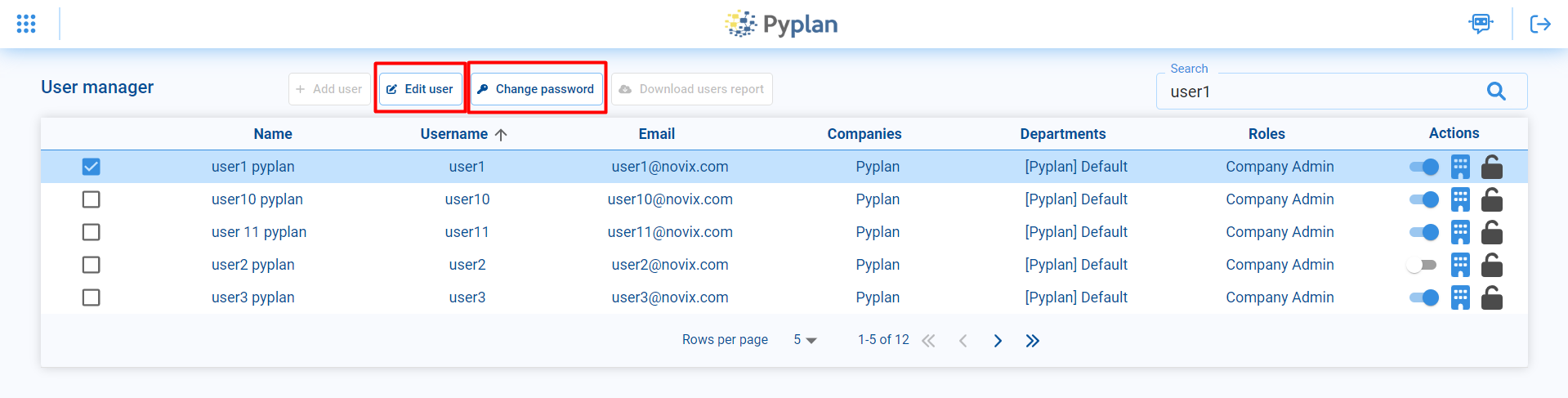
Users, roles, and departments are managed from the User Manager, available under Security options → Users.
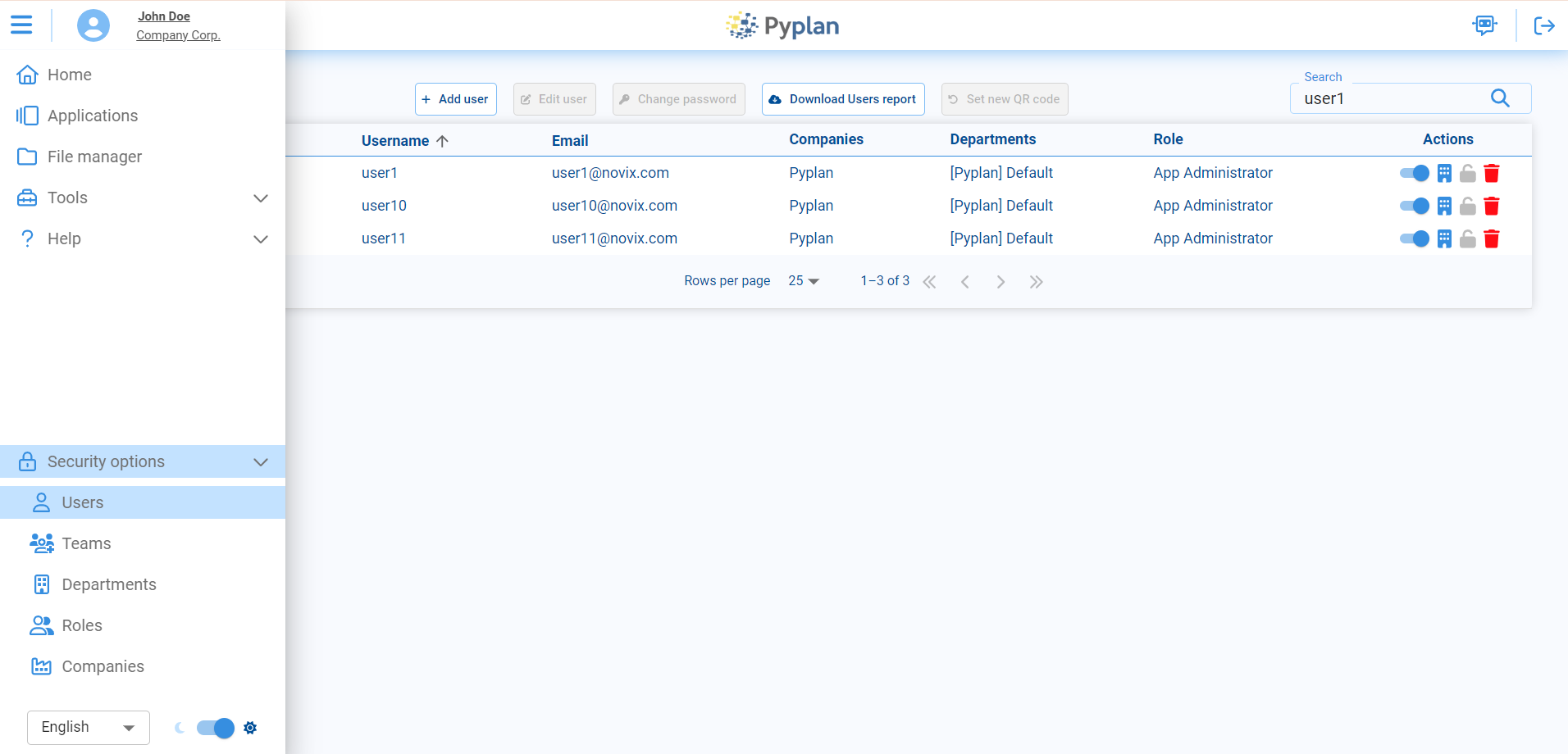
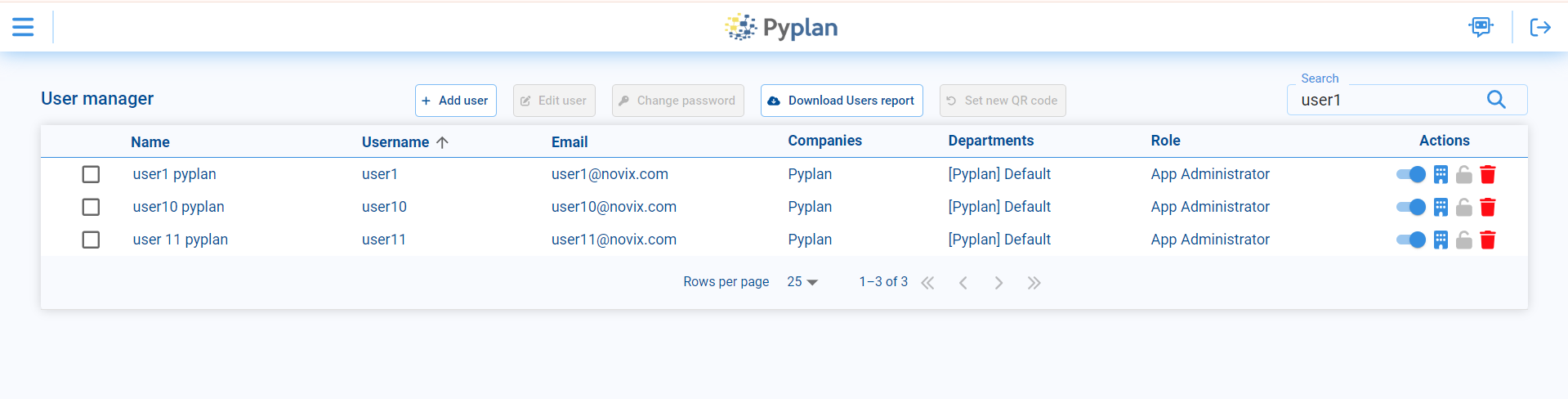
In this section you can:
- View the complete list of users for the selected company.
- Create new users (if you have the required permissions).
- Edit existing user profiles, including their roles and department assignments.
User Creation
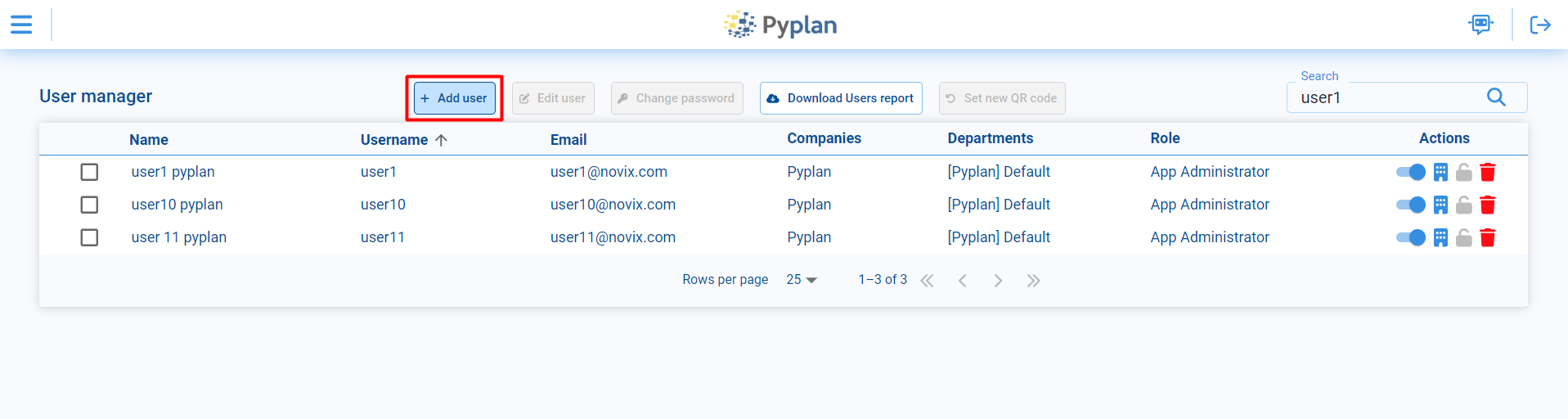
To create a new user, access the Add user option in the User Manager.
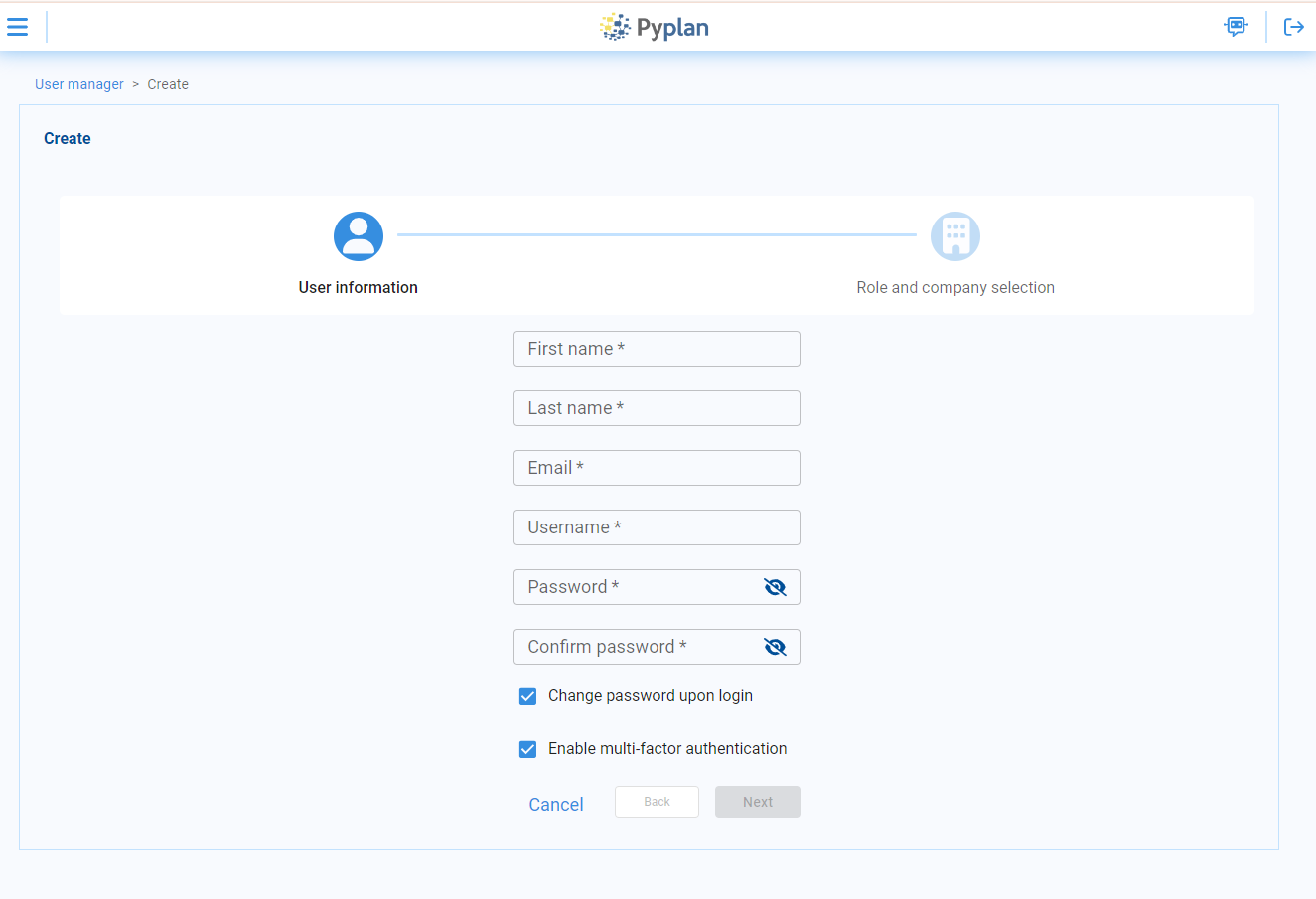
Fill in the required fields: First Name, Last Name, Email, Username, and Password. Additional options include:
- Require user to change password on login.
- Enable multi-factor authentication.
Select the main role for the user. Then choose, for each company you want to assign the user to, the departments and role they belong to.
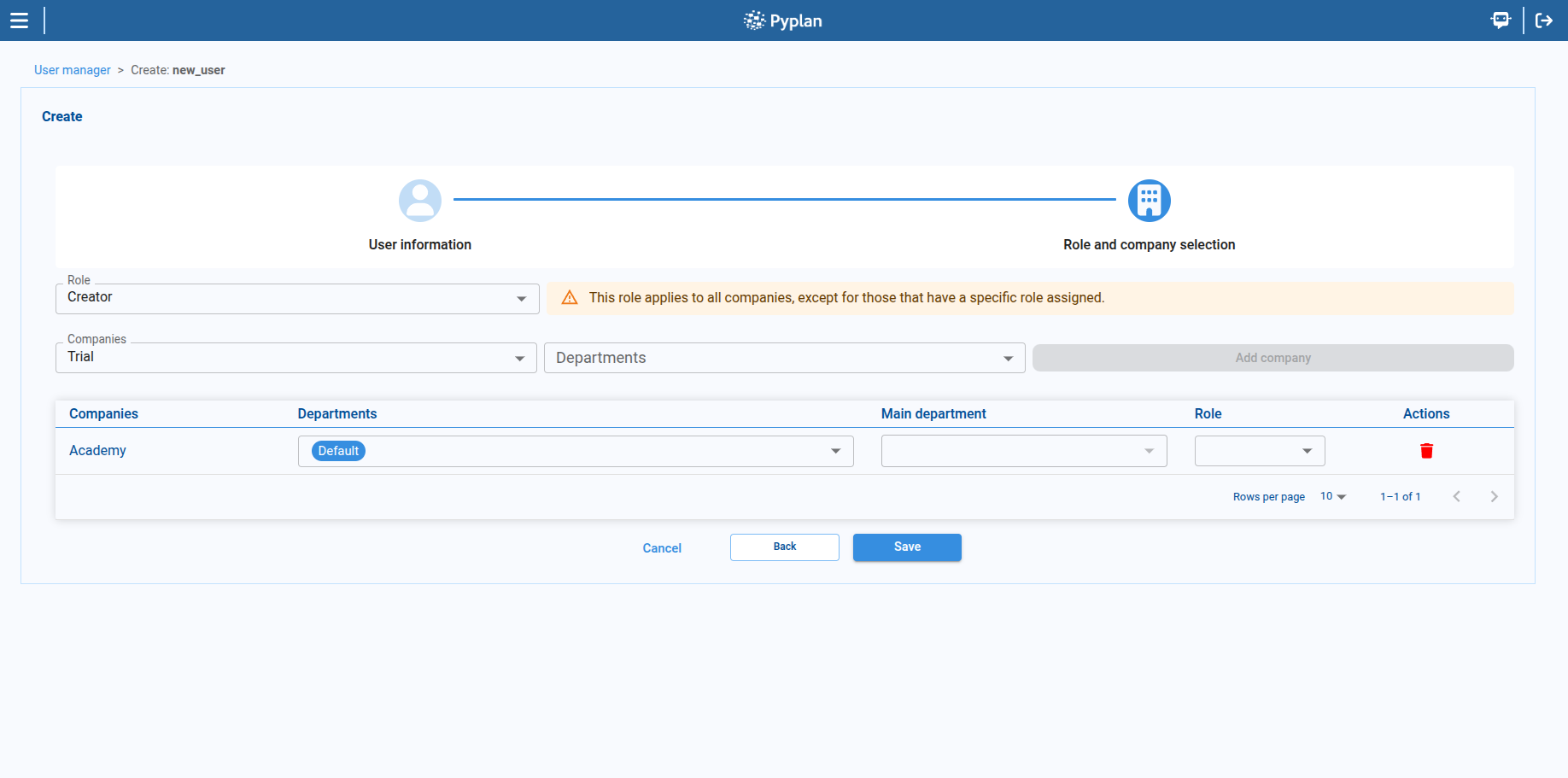
When a user belongs to multiple departments, a Main Department must be selected. The Main Department determines which department's resources and defaults are applied first.
If a user is assigned to more than one department, a Main Department must be set. If it is not set, the backend will choose one arbitrarily, which may lead to incorrect behavior or unexpected resource assignments.
A user may have a specific role for a given company. If so, when the user logs into that company, all permissions are determined by that specific role. If the user does not have a company-specific role, they will inherit all permissions from their main role.
Edit Users
To modify existing users from the User Manager:
- Select the user in the list.
- Use the Edit user option in the toolbar to change profile data, roles, or departments.
- Use the Change password option to update the user's password only.
Changes take effect immediately after saving.
Roles
A role is a collection of permissions assigned to a user within the platform. Roles can be assigned and customized according to the needs of each organization.
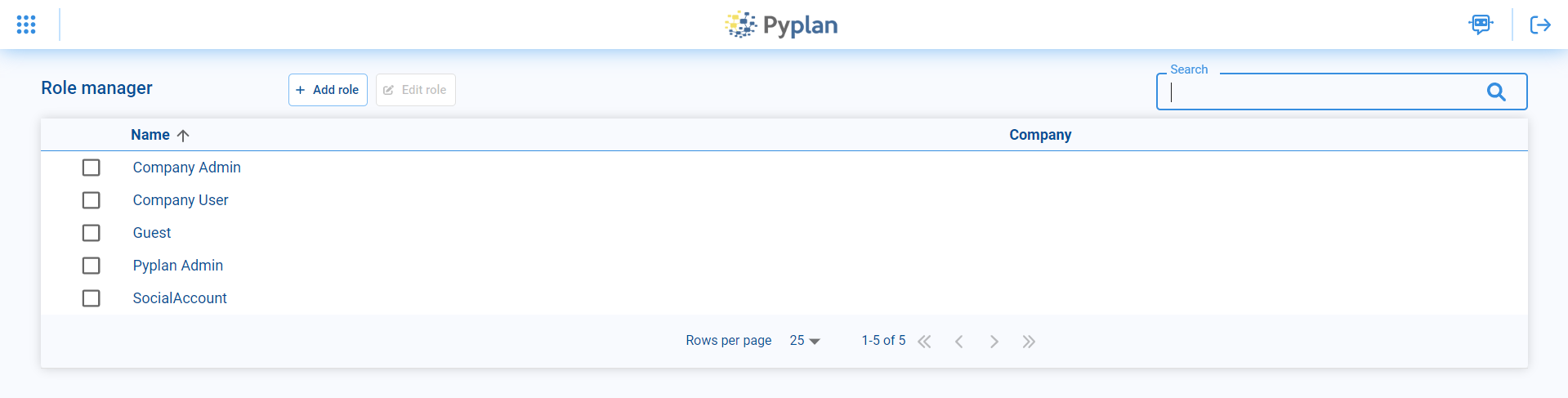
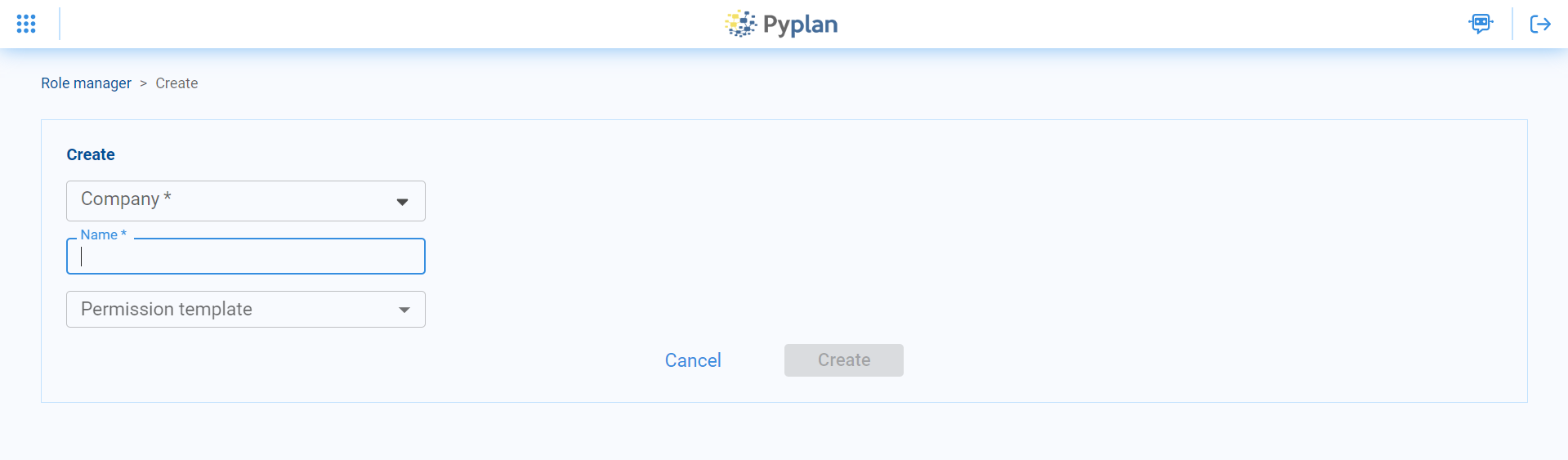
Roles are created by accessing the Add role option in the top menu. Select the company to which the role will belong, define the name, and choose one of the templates that has a set of default permissions configured. Permissions can then be modified in the Permissions by role option.
Permissions by Role
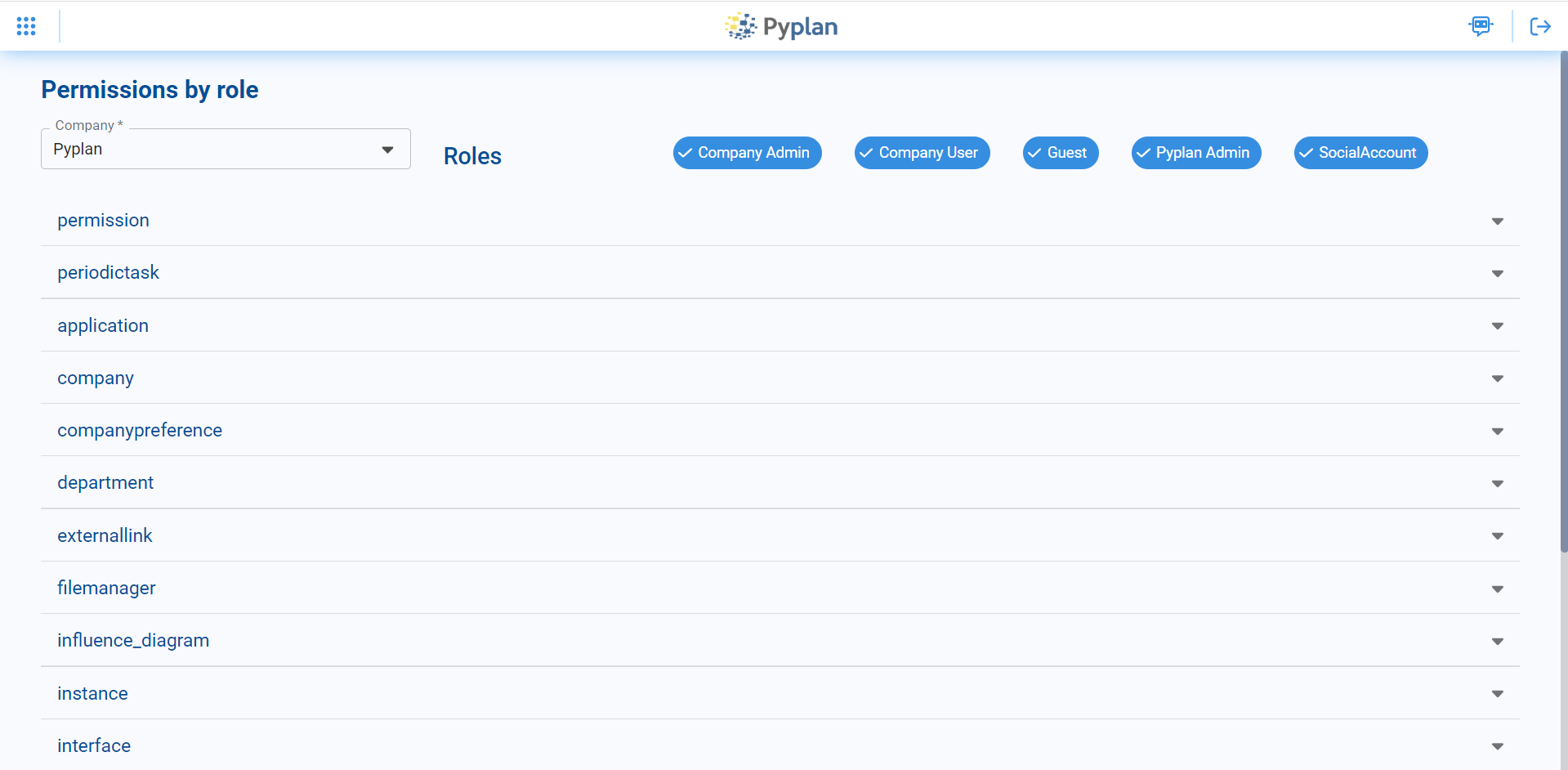
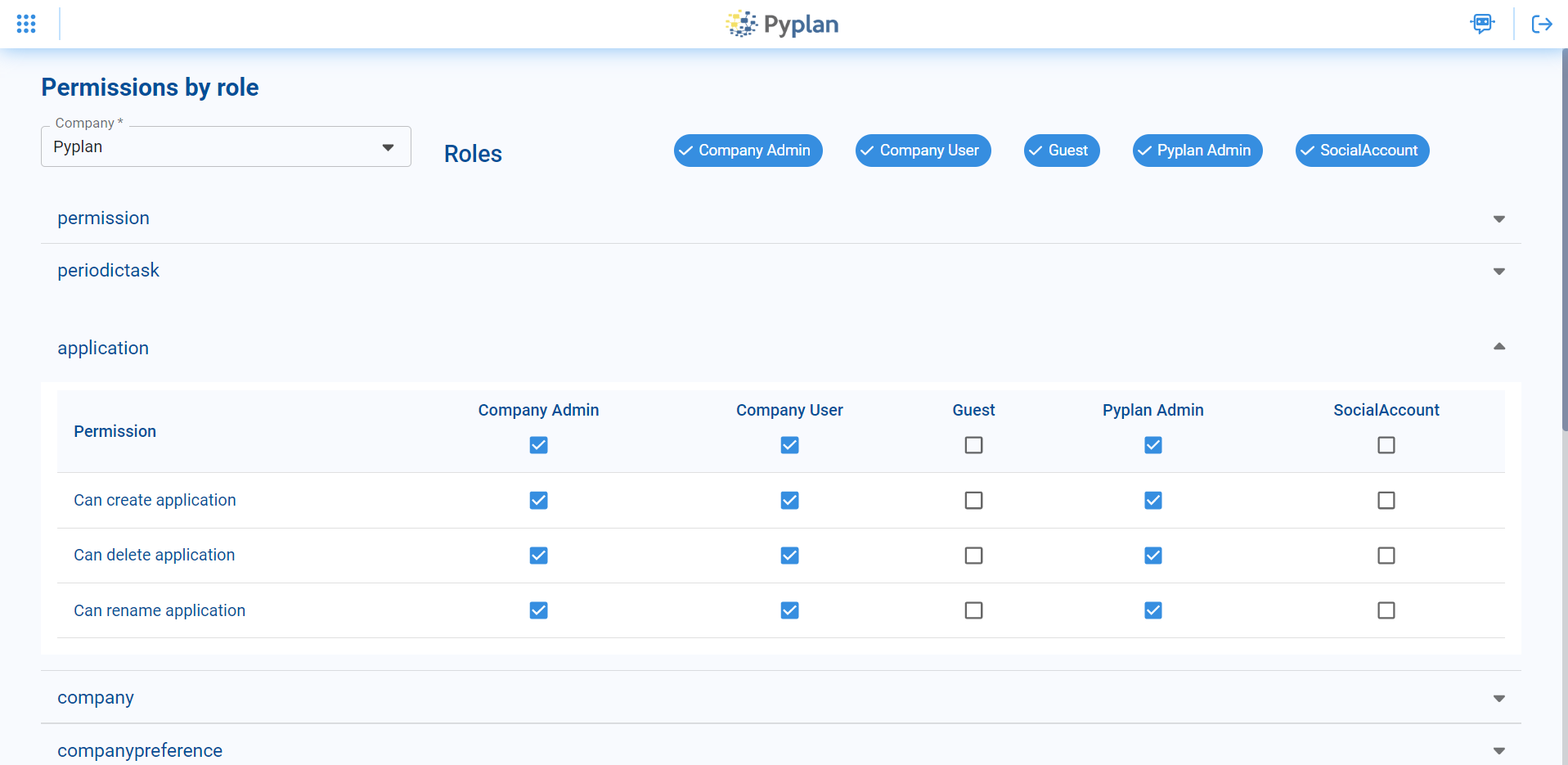
The Permissions by role option lets you modify which actions each role can perform.
- Permissions are grouped by module (Applications, Interfaces, File Manager, Workflow, etc.).
- Expanding a group shows detailed permissions.
- For each permission, enable or disable access per role by checking or unchecking the corresponding checkbox.
Default Role Permissions Table
| Module | Permission | Administrator | App Administrator | Creator with Public Access | Creator | Explorer | Viewer | Login Only | Super Admin |
|---|---|---|---|---|---|---|---|---|---|
| Applications | Create apps | ✓ | ✓ | ✓ | ✓ | ✓ | |||
| Create versions and scenarios | ✓ | ✓ | ✓ | ✓ | ✓ | ||||
| View diagram | ✓ | ✓ | ✓ | ✓ | ✓ | ||||
| Save changes in private space | ✓ | ✓ | ✓ | ✓ | ✓ | ||||
| Save changes in Public app | ✓ | ✓ | ✓ | ✓ | |||||
| Set permissions in diagram modules | ✓ | ✓ | ✓ | ||||||
| Interfaces | View interfaces | ✓ | ✓ | ✓ | ✓ | ✓ | ✓ | ✓ | |
| Add, modify, or delete interfaces | ✓ | ✓ | ✓ | ✓ | ✓ | ✓ | |||
| Set interface permissions | ✓ | ✓ | ✓ | ||||||
| File Manager | View File Manager | ✓ | ✓ | ✓ | ✓ | ✓ | |||
| Add/modify/delete files (private) | ✓ | ✓ | ✓ | ✓ | ✓ | ||||
| Add/modify/delete files (Public) | ✓ | ✓ | ✓ | ✓ | |||||
| Set permissions on files/folders | ✓ | ✓ | ✓ | ||||||
| External Links | Create/modify/delete API endpoints or interface links | ✓ | ✓ | ✓ | ✓ | ✓ | |||
| Workflow | Manage processes | ✓ | ✓ | ✓ | |||||
| Scheduled Tasks | Create/modify/delete scheduled tasks | ✓ | ✓ | ✓ | ✓ | ✓ | |||
| Teams | Add/modify/delete Teams | ✓ | ✓ | ✓ | |||||
| Departments | Add/modify/delete departments | ✓ | ✓ | ✓ | |||||
| Instances | View company instances | ✓ | ✓ | ✓ | |||||
| Deactivate company instances | ✓ | ✓ | ✓ | ||||||
| Roles | Create/modify/delete roles | ✓ | |||||||
| Companies | Create companies | ✓ | |||||||
| Modify companies | ✓ | ✓ | |||||||
| General Settings | Modify General Settings | ✓ | ✓ |
Departments
Departments control access to data and resources at an organizational level. They can:
- Restrict access to specific folders in the File Manager.
- Restrict access to certain interfaces or modules.
- Define the hardware specifications for the instances used by their members.
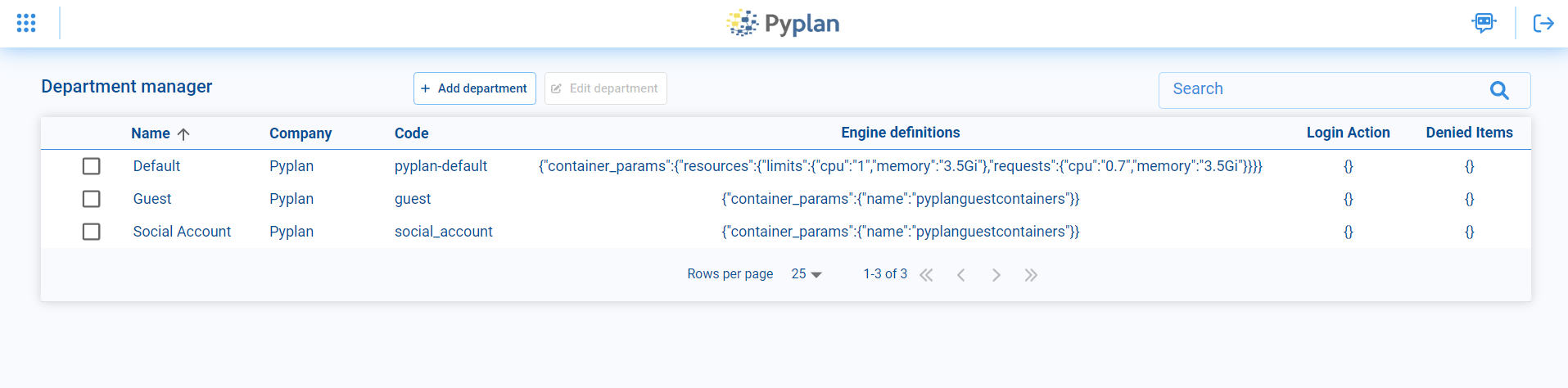
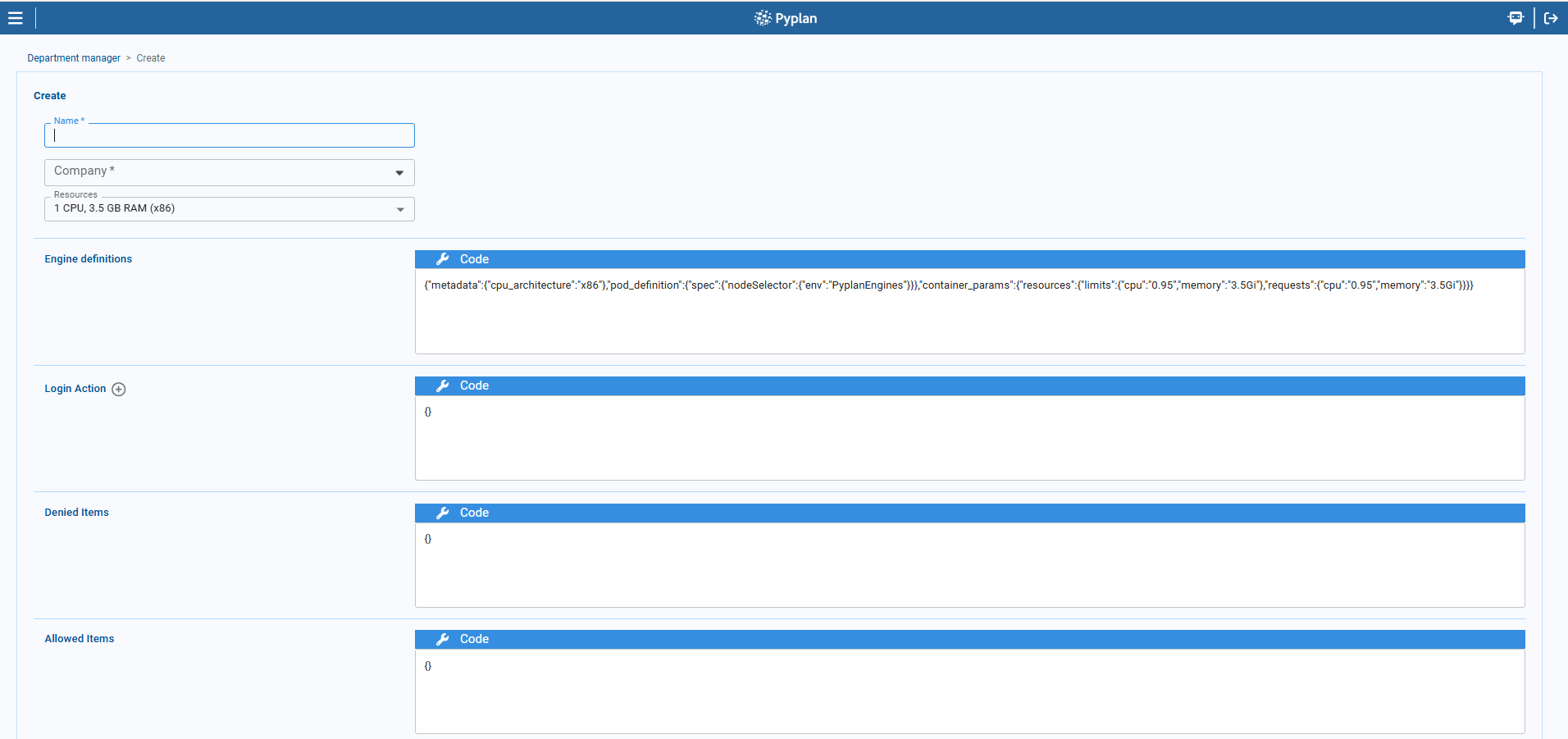
From the Department Manager you can view existing departments, edit them, or create new ones using Add department, where you specify:
- Department name.
- Company it belongs to.
- Resources.
Teams
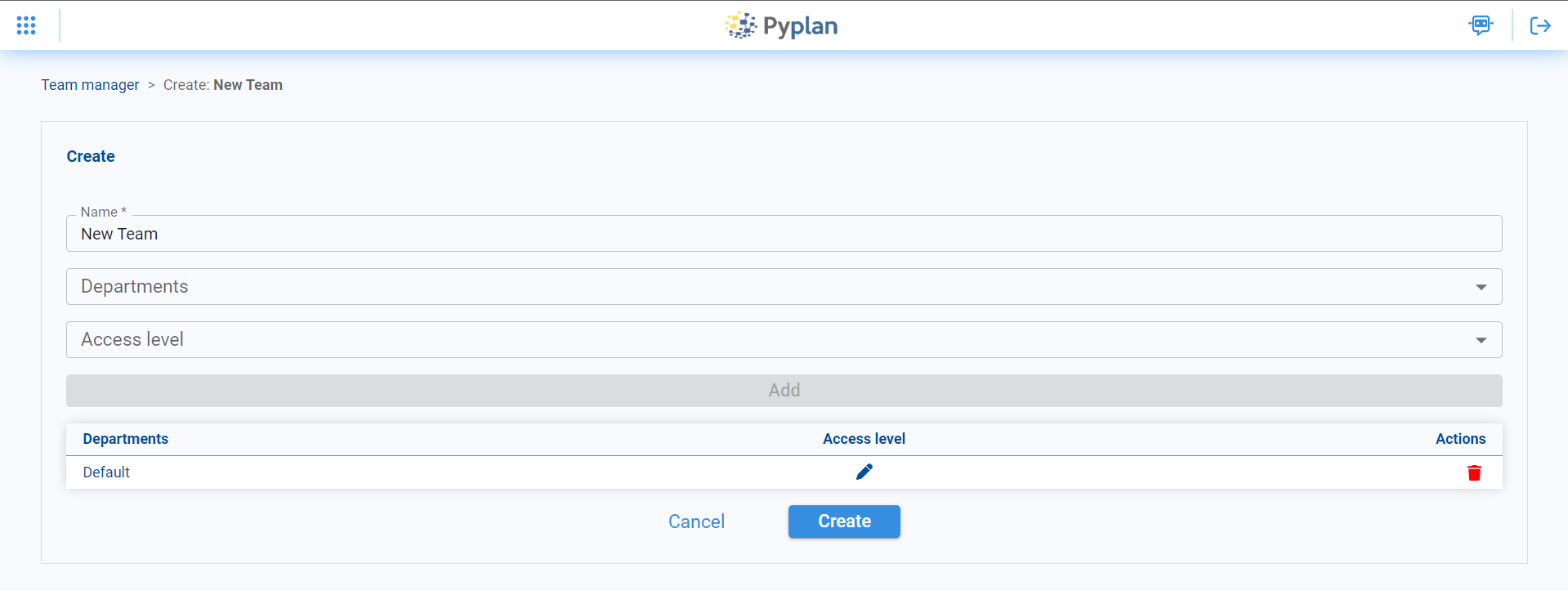
Teams allow you to group users within a company so they can share applications and files only with other members of that Team. Each Team has its own folder in the File Manager (under the Teams folder), accessible only by Team members.

From the Team Manager you can view existing teams or add new ones. For each team you define:
- The name of the Team.
- Which departments have access and with which level: Read-only or Read/Write.
Companies
In Pyplan, each company defines an isolated environment where its users can work together and share files and applications. From the Company Manager you can create new companies and edit existing ones.
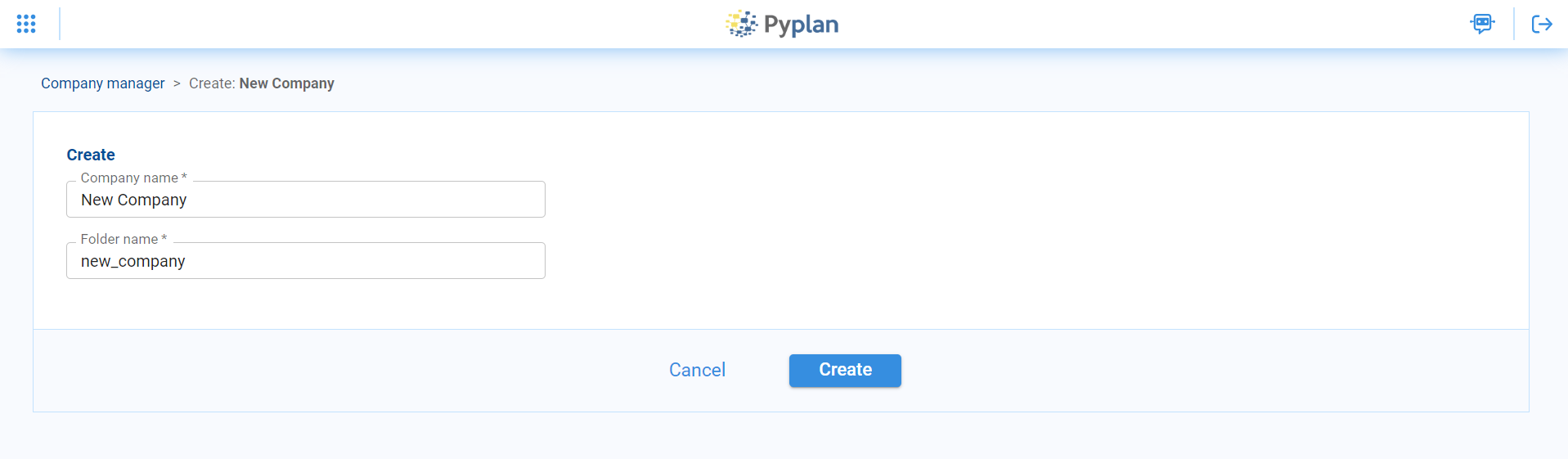
When creating a new company, define:
- The company name.
- The folder name where all files belonging to that company will be stored.
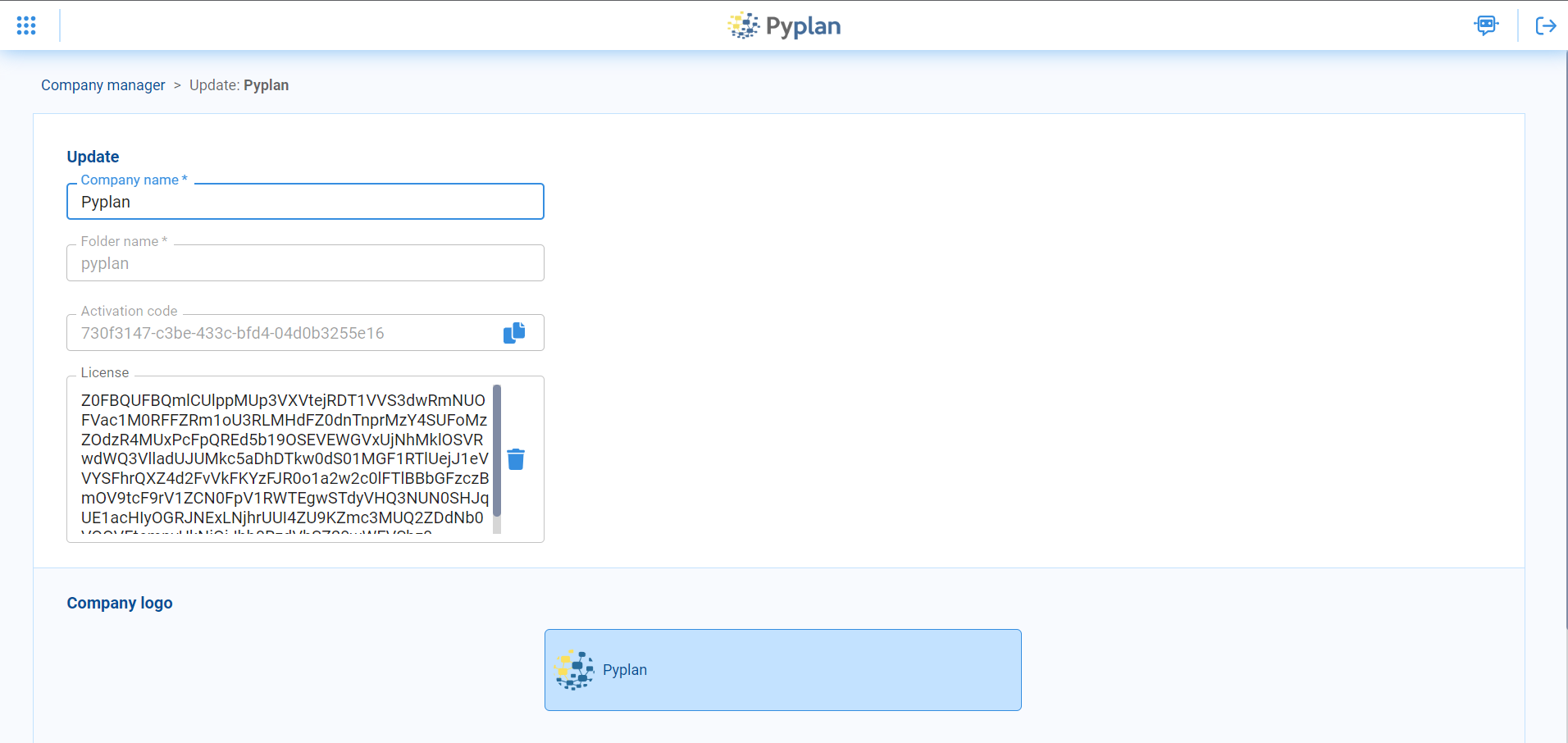
To activate a new company, assign a Pyplan license, which determines:
- For how long the company is enabled.
- The maximum number of users allowed.
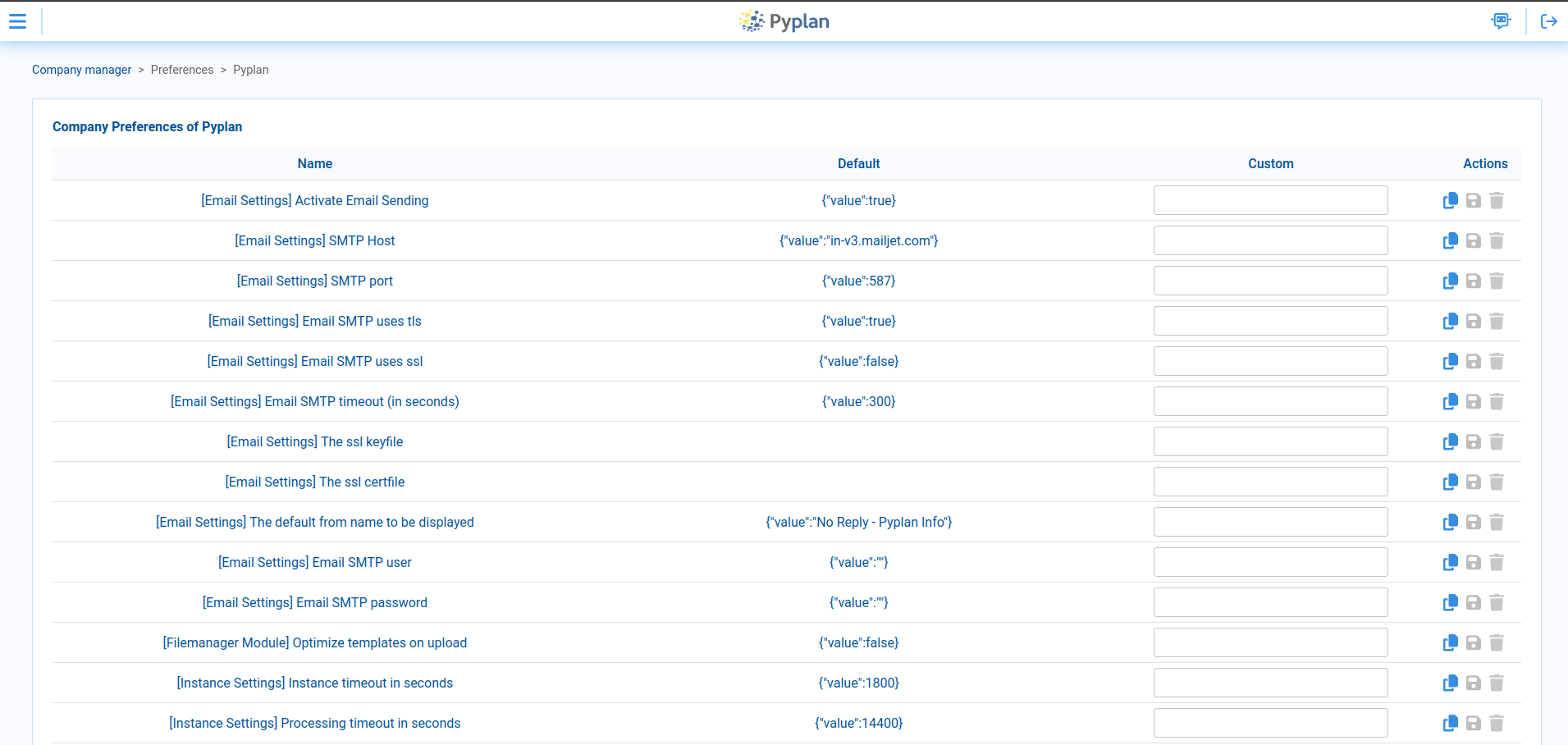
Manage company-level preferences by selecting a company and clicking the Preferences button.

Email Settings
The Email Settings preference module controls how Pyplan sends the notification emails of the platform — including every workflow (Processes) notification. All of these are company preferences, so different companies on the same installation can have different settings.
| Preference | What it does |
|---|---|
email_service_active | Master switch. When false, nothing is queued or sent for that company. |
email_language | Language of the emails: en, es or pt. Defaults to en. |
email_default_from_name | Display name shown as the sender. |
smtp_host, smtp_port, smtp_use_tls, smtp_use_ssl, smtp_timeout, smtp_ssl_keyfile, smtp_ssl_certfile | SMTP server connection. |
smtp_user, smtp_password | SMTP credentials. These are read from the SMTP_USER / SMTP_PASSWORD environment variables of the server, not from the preference value. |
All of them are edited from the same screen: Company Manager → select the company → Preferences, shown under Companies above.
Each row shows the platform Default and an editable Custom value. To override one:
- Click Copy Default value (the copy icon) to bring the default JSON into the Custom box.
- Edit the value.
- Click Save custom value (the save icon).
Remove custom value (the bin icon) drops the override and returns the company to the default.
The remaining icon, Edit Default value (the pencil), changes the platform-wide default rather than this company's override, and affects every company that has not set one.
Changing the email language
Set the Custom value of [Email Settings] Email language messages (en|es|pt) to en, es or pt:
{
  "value": "es"
}

The setting applies to the whole email: subject line, body text, status names, and the format of the dates (for example September 4, 2026, 2:30 p.m. in English versus 4 de septiembre de 2026 a las 14:30 in Spanish). Any value other than en, es or pt falls back to English.
The language is per company, not per recipient: every user of the company receives the emails in the configured language.
Dates in emails are always expressed in UTC, and the emails say so explicitly next to each date.
The email logo
Emails carry their own logo, set separately from the company logo shown on the login page. They are deliberately independent: the mark that works inside the application is often the wrong one on an email card — a dark logo disappears on the white background, and a square crop reads worse than a wide one.
To set it, go to Company Manager → select the company → Update, scroll to Email logo, and drop the image on the area below it.
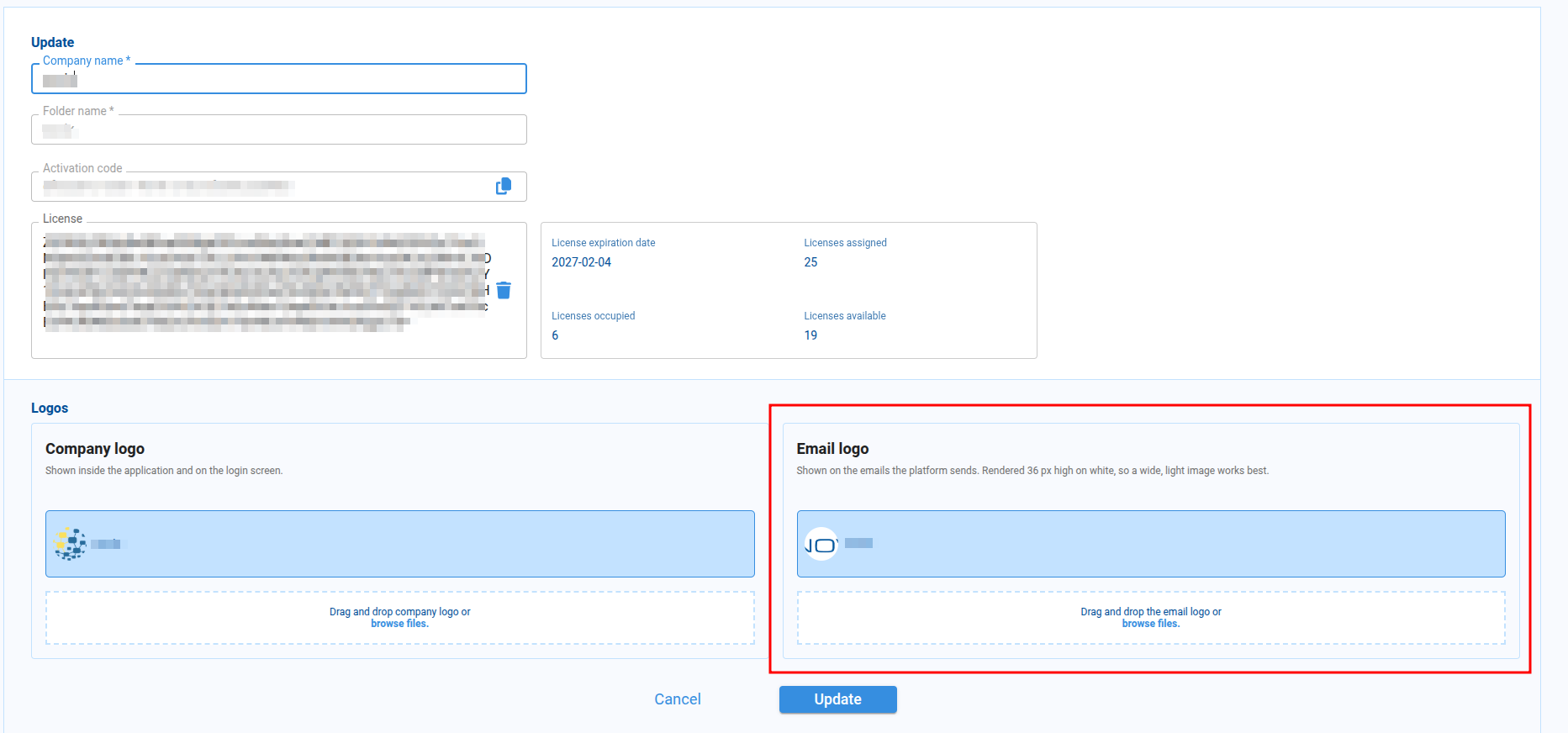
As with the company logo, the file uploads as soon as you drop it — there is no need to press Save, which only applies the name, folder and license fields. The Email logo section only appears when editing an existing company, not when creating one.
The image must be a PNG, JPG or GIF. SVG is accepted by the uploader and renders in the browser, but no major mail client displays it, so emails fall back to the Pyplan logo when the uploaded file is one. It is rendered at 36 px height on a white background, so a wide, light image around 300 × 100 px works best.
Whatever the file is called when you upload it, it is stored under one fixed name in the company's media folder, which is what tells it apart from the company logo sitting in that same directory:
<MEDIA_ROOT>/<company_code>/<company logo>      the application logo, under its original name
<MEDIA_ROOT>/<company_code>/email_logo.png      the email logo, always under this name
Images that are not already PNG are re-encoded on upload, so the stored file matches the name it is served under.
That file is the setting — nothing is recorded in the database. Uploading replaces it, and deleting it from the server removes the logo, with emails going back to the Pyplan one. It also means an administrator with server access can set the logo by placing an email_logo.png in the company folder, without going through the interface — which is how installations configured it before this screen existed, and those files keep working untouched.
Because the file always has the same name, its URL never changes. After replacing the logo, a mail client that already fetched the previous one may keep showing it until its cache expires.
For the logo to reach the recipient, the CUSTOMER_TRUSTED_ORIGINS environment variable of the server must contain the public URL of the installation — the image is linked, not attached, and travels as an absolute URL such as https://<your-host>/media/<company_code>/email_logo.png — and /media/ must be publicly served, which it is in the standard nginx configuration.
Because the image is linked rather than attached, mail clients that block remote images by default will not show it until the reader allows images for that message. This is the deliberate trade-off: attaching the file instead makes every message carry it, and a logo uploaded at full resolution is enough to push a message past the size at which providers stop rendering it — Gmail clips anything over about 102 KB.
If the company has no email logo, or it is in an unsupported format, or the file is missing from disk, emails show the Pyplan logo. Nothing breaks. Note that setting only the company logo does not change the emails: the two are separate settings.
When the logo does not appear
Emails fall back to the Pyplan logo silently — nothing fails and nothing is reported to the sender — so work through these in order.
1. Is there a file? The logo is the file itself, so check it exists on the server:
ls -l <MEDIA_ROOT>/<company_code>/email_logo.png
2. Is the email being sent by the company you think? Each email carries the company that owns the thing it is about — the process, in the case of a workflow notification. A process created while logged into company A sends with A's logo and A's language, whoever the recipients are and whichever companies they belong to. Setting the logo on a different company changes nothing for it.
3. Is CUSTOMER_TRUSTED_ORIGINS set on the server? The logo travels as an absolute URL, and this variable is where its host comes from. When it is empty, no logo is emitted at all — this is the most common cause and the least visible one, because everything else can be perfectly configured.
# what the API process actually sees, which is what counts
printenv CUSTOMER_TRUSTED_ORIGINS
4. Is that URL current and reachable from outside? The address has to be the public one for the installation right now, and /media/ has to be served on it:
curl -o /dev/null -w "%{http_code}\n" https://<your-host>/media/<company_code>/email_logo.png
Anything other than 200 and the recipient's mail client will not get the image either. A stale value here — a tunnel or preview URL that has since changed — produces an email with a broken image rather than the Pyplan fallback.
5. Is the reader's mail client blocking remote images? Outlook and several others do by default. The image only appears once the reader allows images for that message.
On Kubernetes, CUSTOMER_TRUSTED_ORIGINS has to be present in the ConfigMap the API and Celery deployments read, and the pods have to be restarted after adding it — environment taken through envFrom is read when the container starts and does not reload while it is running. Setting it only in a .env file used by another deployment method has no effect on the running pods.
Single Sign-On (SSO) with SAML
To enable SSO with SAML, add a preference called SAML Configuration with the following JSON structure:

{
  "groups": ["Name of Group"],
  "definition": {
    "service": {
      "sp": {
        "idp": { ... },
        "single_sign_on_service": { ... }
      },
      "name": "Company name",
      "endpoints": { ... }
    },
    "entityid": "string",
    "metadata": { ... }
  },
  "departments": ["departmentCode"],
  "main_department": "string"
}
Key fields:
- groups: Roles to assign to the user when created. Values must match existing role names in Pyplan.
- definition: JSON containing all SAML configuration details (company name, IdP information, connection metadata, etc.).
- departments: Department codes to assign to the user when created.
- main_department: Main department code for resource usage.
Role Mapping
To define default roles and departments based on values from Active Directory, add a preference called Role Mapping:

{
    "role": {
        "ManagerFromActiveDirectory": "Administrator",
        "CustomUserActiveDirectory": "Creator"
    },
    "department": {
        "SalesActiveDirectory": ["pyplan-default", "guest"],
        "InvitedActiveDirectory": "guest"
    }
}
Grant/Deny Access to Information
In Pyplan, you can manage access permissions to specific items — such as folders, modules, and interfaces — per department. This allows, for example, departments like Accounting and HR to have different visibility and access within the same application.
How it works
For each department you can either allow or deny access to selected items:
- If an item is in the allowed list, the department can access it.
- If an item is in the denied list, the department cannot access it.
Pyplan automatically resolves conflicts:
- If an item is added to the allowed list, it is removed from the denied list.
- If an item is added to the denied list, it is removed from the allowed list.
File Manager folders are matched by name, so a rule on a folder reaches every folder called the same way in the company. We can single out specific folders with exempt paths.
What you can control
For each department you can manage access to:
- Interfaces and interface folders
- Modules in the influence diagram
- Folders in the File Manager
Example 1: Configuring permissions for interfaces
From the Interface Manager:
- Select one or more interfaces whose access you want to change.
- Open the permissions dialog.
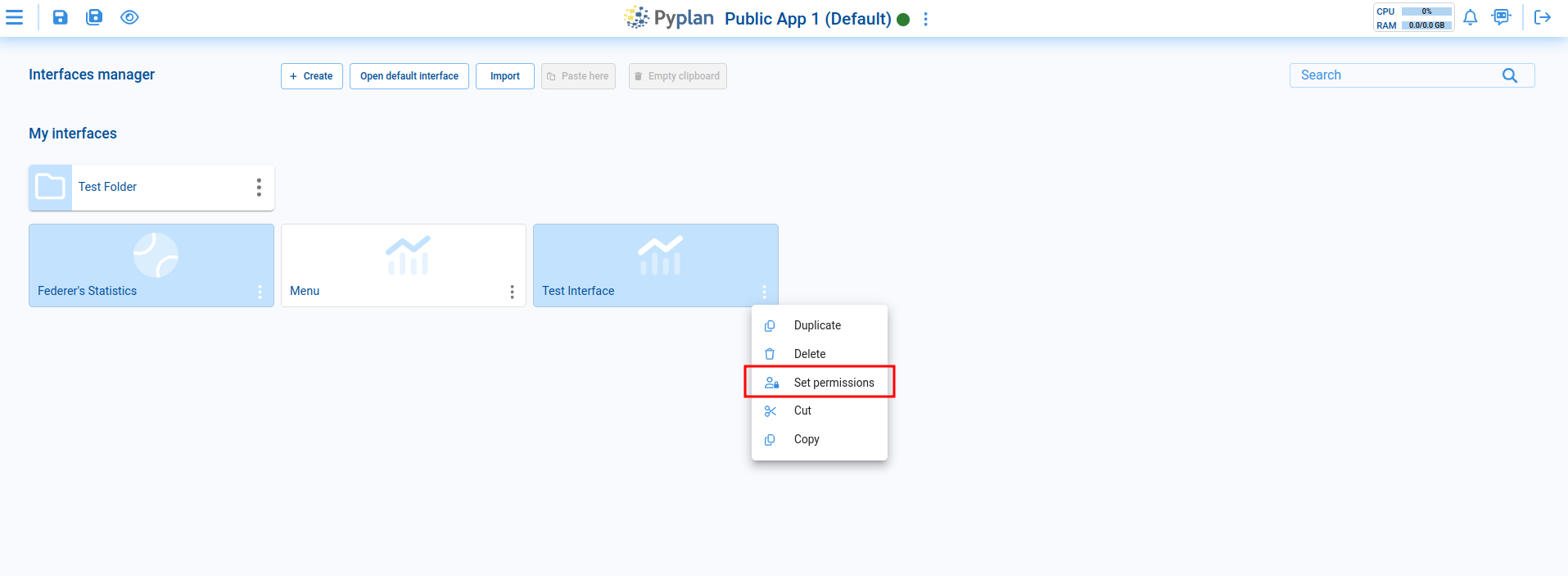
The dialog lets you choose between:
- Deny access to selected departments, or
- Allow access only to selected departments.
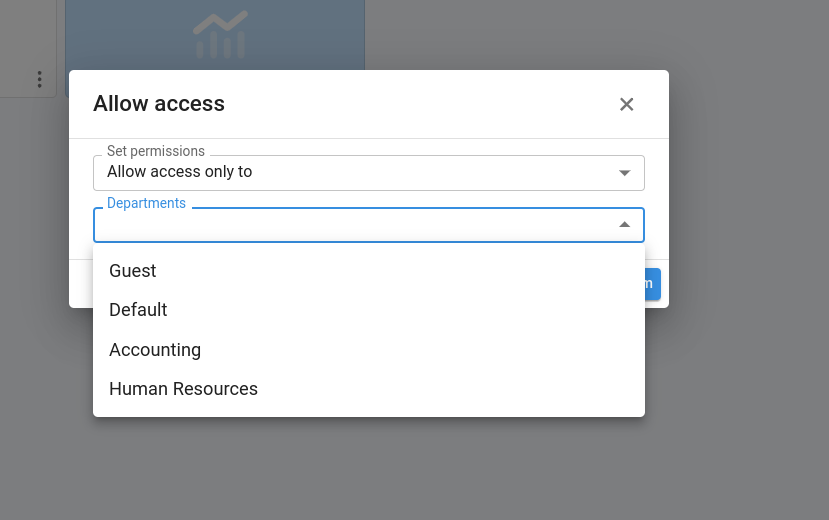
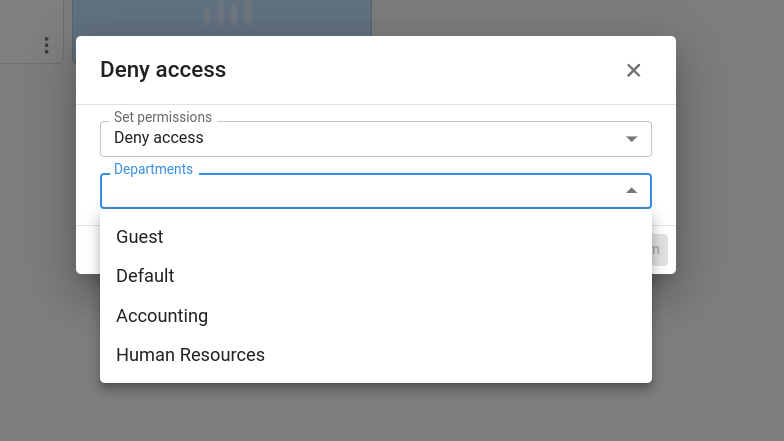
After applying the change, the interface shows a padlock icon to indicate restricted access.
Example 2: Configuring permissions for modules
To restrict access to diagram modules:
- Select one or more modules in the influence diagram.
- Right-click to open the context menu.
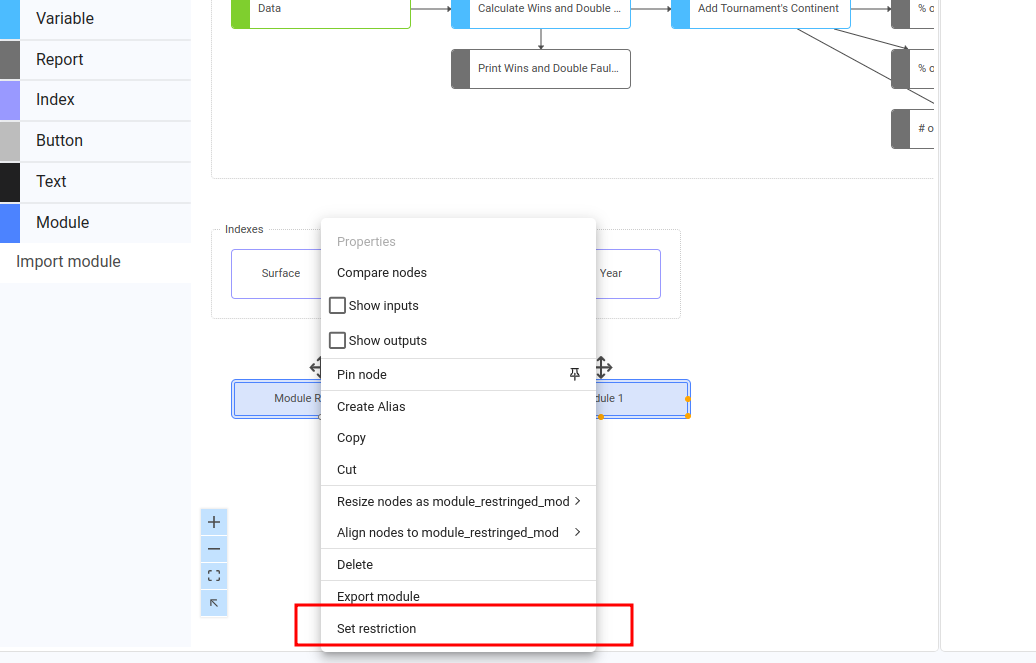
The dialog lets you choose between Deny or Allow access to selected departments.
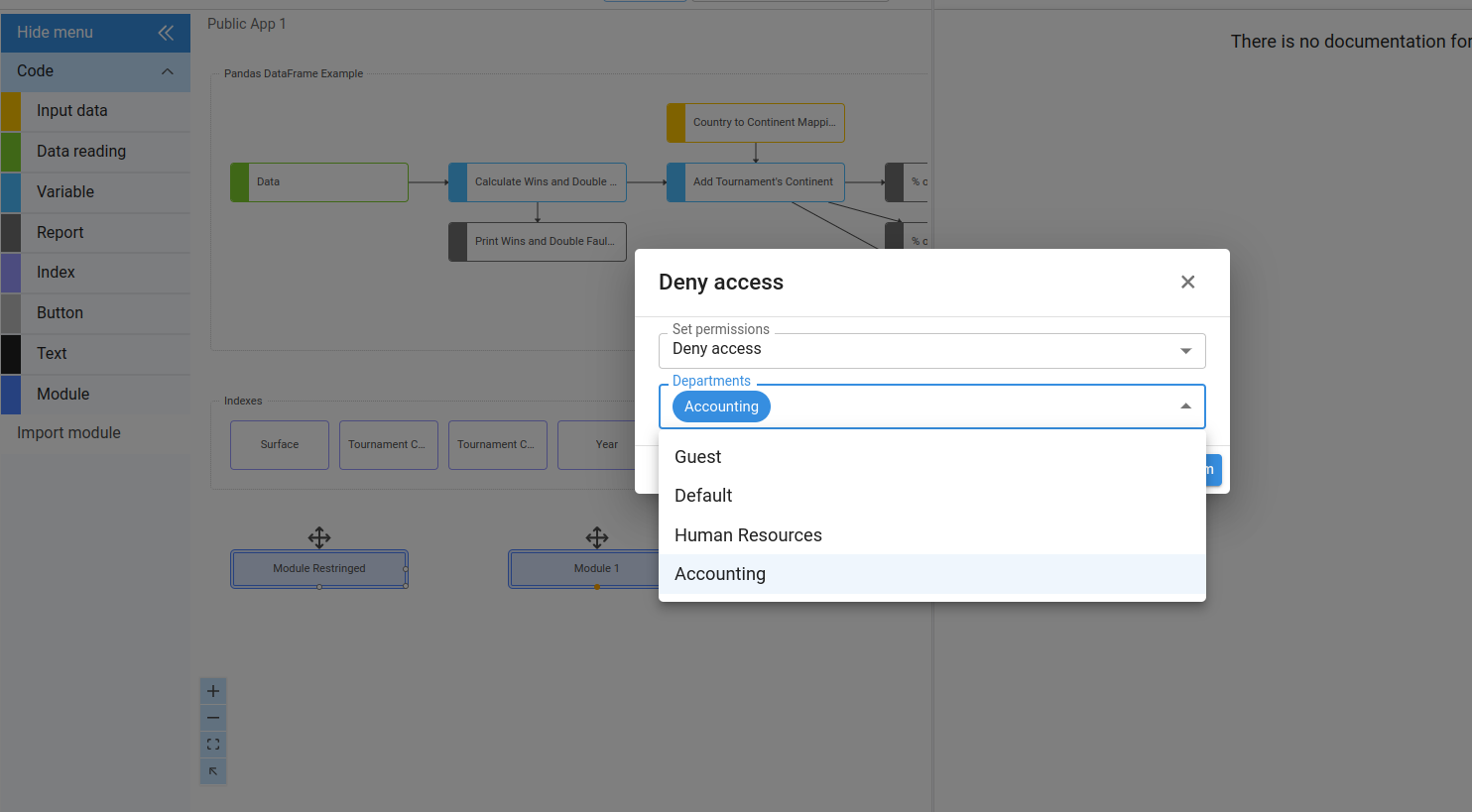
When access to a module is denied for a department, users from that department will not see those modules when opening the diagram.
Example 3: Configuring permissions in the File Manager
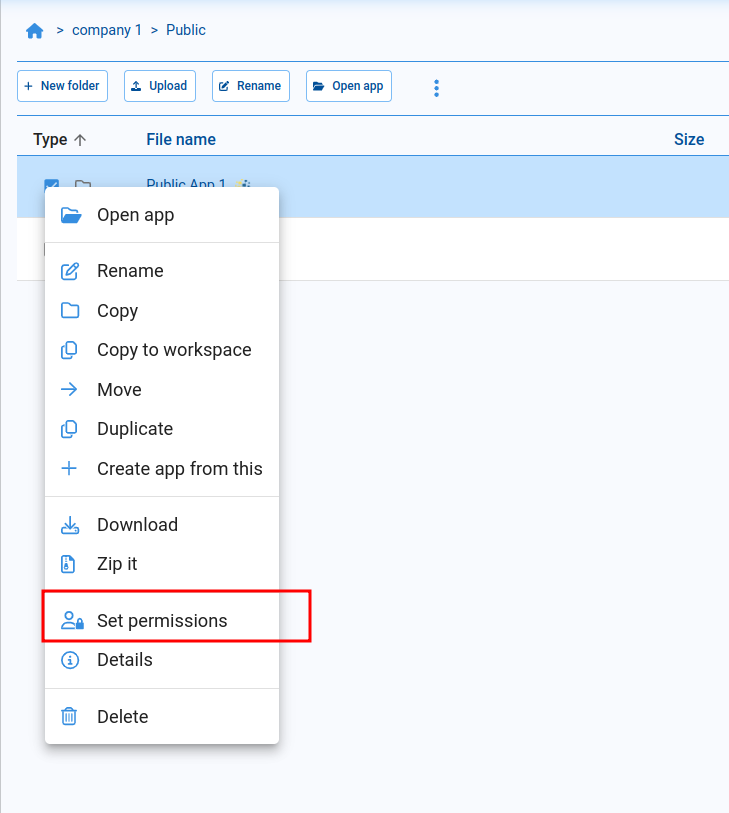
In the File Manager, you can restrict one folder at a time:
- Navigate to the folder you want to restrict.
- Open its options menu.
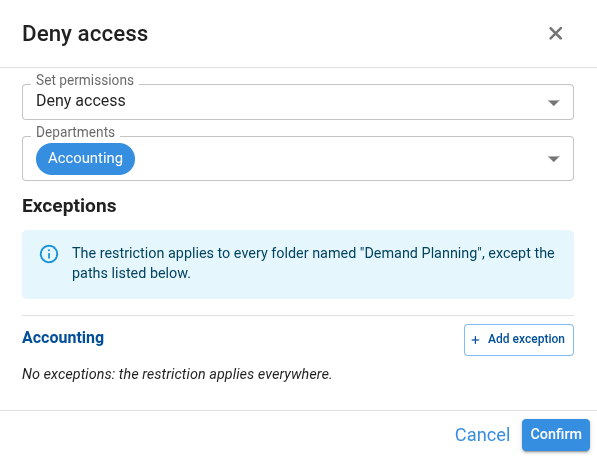
- Use the same permissions dialog.
Exempt paths on folder rules
A rule on a File Manager folder matches by folder name, so it reaches every folder called the same way in the company, including folders that belong to different applications. That is convenient when the same structure repeats across applications, but sometimes one particular folder has to behave differently.
Exceptions cover that case. The rule keeps matching by name, and we list the exact folders it must not reach. Exceptions are configured per department, so two departments can be exempted on different folders.
To add an exception:
- Open the folder's permissions dialog, as described in Example 3.
- Choose the rule under Set permissions — Deny access or Allow access only to — and select the departments.
- Under Exceptions, every selected department shows its own list. We select Add exception on the department we want to configure.
- In Add exception for folder, we browse the tree and select the folder to exempt. Only folders with the same name as the rule can be selected, because an exception is matched against the folder's full path.
- We select Confirm, repeat for as many folders as needed, and save the dialog with Confirm.
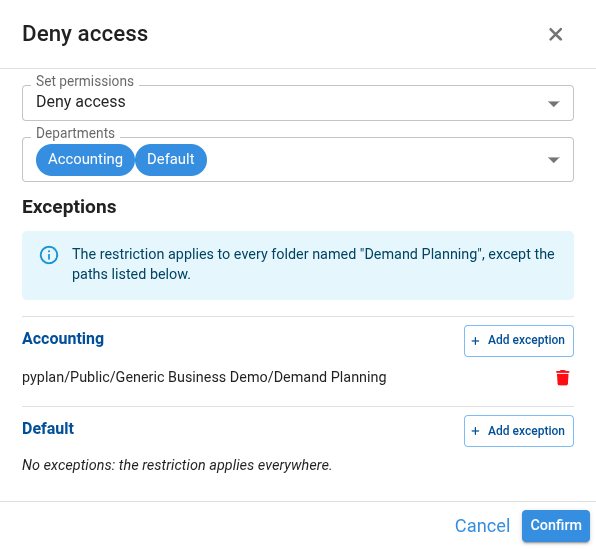
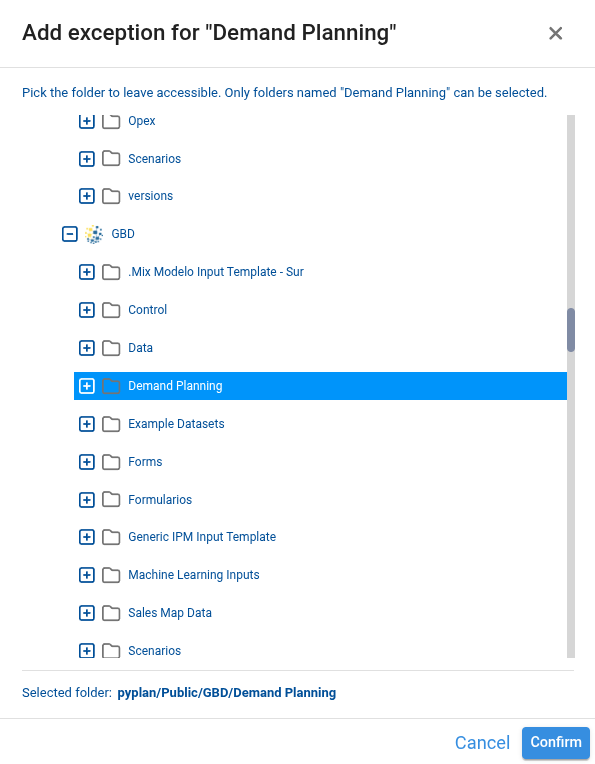
The Access column of the File Manager, and the Set permissions option in the folder menu, are only visible to users who are allowed to configure restrictions. Users without those permissions never see which folders are restricted.
How exempt paths are resolved
What an exception means depends on the rule it belongs to:
| Rule | The exempted folder… |
|---|---|
| Deny access | is visible to the selected departments, while every other folder with that name stays restricted. |
| Allow access only to | is left out of the permission, so it becomes restricted for the selected departments and stays restricted for the rest. |
An exception always points at one exact folder, never at a name:
- Other folders with the same name keep behaving as the rule says.
- The exemption also covers the content of that folder, including its subfolders and files.
- A folder with the same name located inside an exempted folder is not exempted, and the rule still applies to it.
Exceptions are stored as folder paths. When we rename or move the folder — or any of its parent folders — the exception stops matching and the folder goes back to what the rule says. The dialog marks those entries with a warning icon, so we can remove them and select the folder again in its new location.
When a user belongs to several departments, a folder is exempted only if all of their departments exempt it. Adding a department to a user never grants access that another one of their departments restricts.
Example 4: Exempting a folder from a Deny access rule
In this example the company has three applications that happen to contain a folder called Working files:
Novix/
├── Public/
│   ├── Budget 2026/
│   │   └── Working files
│   └── Sales Forecast/
│       └── Working files
└── Teams/
    └── Finance/
        └── Consolidation/
            └── Working files
We want the Sales department to stop seeing the working files of the budgeting applications, but to keep the ones of the consolidation application it collaborates on. We open the permissions dialog on any Working files folder and configure:
- Rule: Deny access
- Departments: Sales
- Exceptions for Sales:
Novix/Teams/Finance/Consolidation/Working files
The result:
| Folder | A user in Sales | A user in any other department |
|---|---|---|
Public/Budget 2026/Working files | restricted | visible |
Public/Sales Forecast/Working files | restricted | visible |
Teams/Finance/Consolidation/Working files | visible | visible |
The rule reaches the three folders because it matches the name, and the exception releases only the one we listed. The other departments are not part of the rule, so nothing changes for them.
Example 5: Exempting a folder from an Allow access only to rule
This example uses a different company, where several applications keep sensitive documentation in a folder called Confidential:
Contoso/
├── Public/
│   ├── Headcount Planning/
│   │   └── Confidential
│   └── Compensation Review/
│       └── Confidential
└── Teams/
    └── Legal/
        └── Litigation Tracker/
            └── Confidential
Only the People department should reach those folders. The one inside the litigation application is the exception: it is under legal hold, so it must stay out of everyone's reach, including the department that handles all the others. We configure:
- Rule: Allow access only to
- Departments: People
- Exceptions for People:
Contoso/Teams/Legal/Litigation Tracker/Confidential
The result:
| Folder | A user in People | A user in any other department |
|---|---|---|
Public/Headcount Planning/Confidential | visible | restricted |
Public/Compensation Review/Confidential | visible | restricted |
Teams/Legal/Litigation Tracker/Confidential | restricted | restricted |
Here the exception works the other way around than in the previous example. An Allow access only to rule grants the name to People and restricts it for every other department, so taking a folder out of the rule takes it away from People as well. The rest of the departments were restricted on that folder to begin with, so the exempted one ends up reachable by nobody — which is exactly what a legal hold needs.
When in doubt about which rule to use, we can read the exception as "this folder is not part of the rule". On a Deny access rule that means the folder is not restricted; on an Allow access only to rule it means the folder is not granted.