Processes
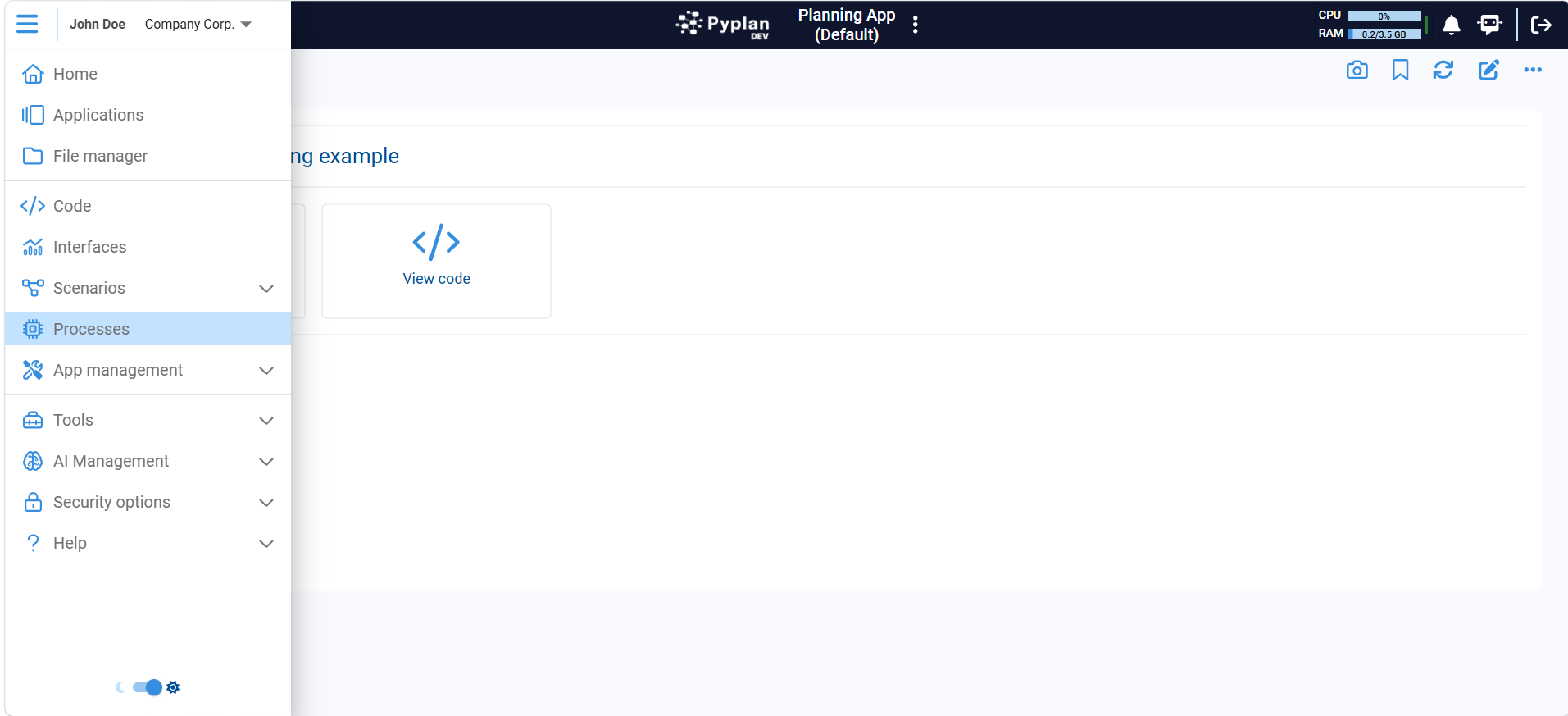
The Processes section allows users to create and manage the processes of application creation. A process is a sequence of logical steps that people need to follow to complete a particular task or project. Users can utilize these processes to organize and track projects.
The Processes manager provides an intuitive and user-friendly interface for creating and managing processes, task groups, and individual tasks. Users can create new processes, add task groups, and assign tasks to the corresponding users. They can also designate appropriate reviewers to ensure the quality of work performed in each task.
This section of Pyplan is essential for maintaining a clear and organized record of the steps followed in application creation. It allows better collaboration among team members, defines clear responsibilities, and facilitates the review and validation of each completed task.
Create a Process
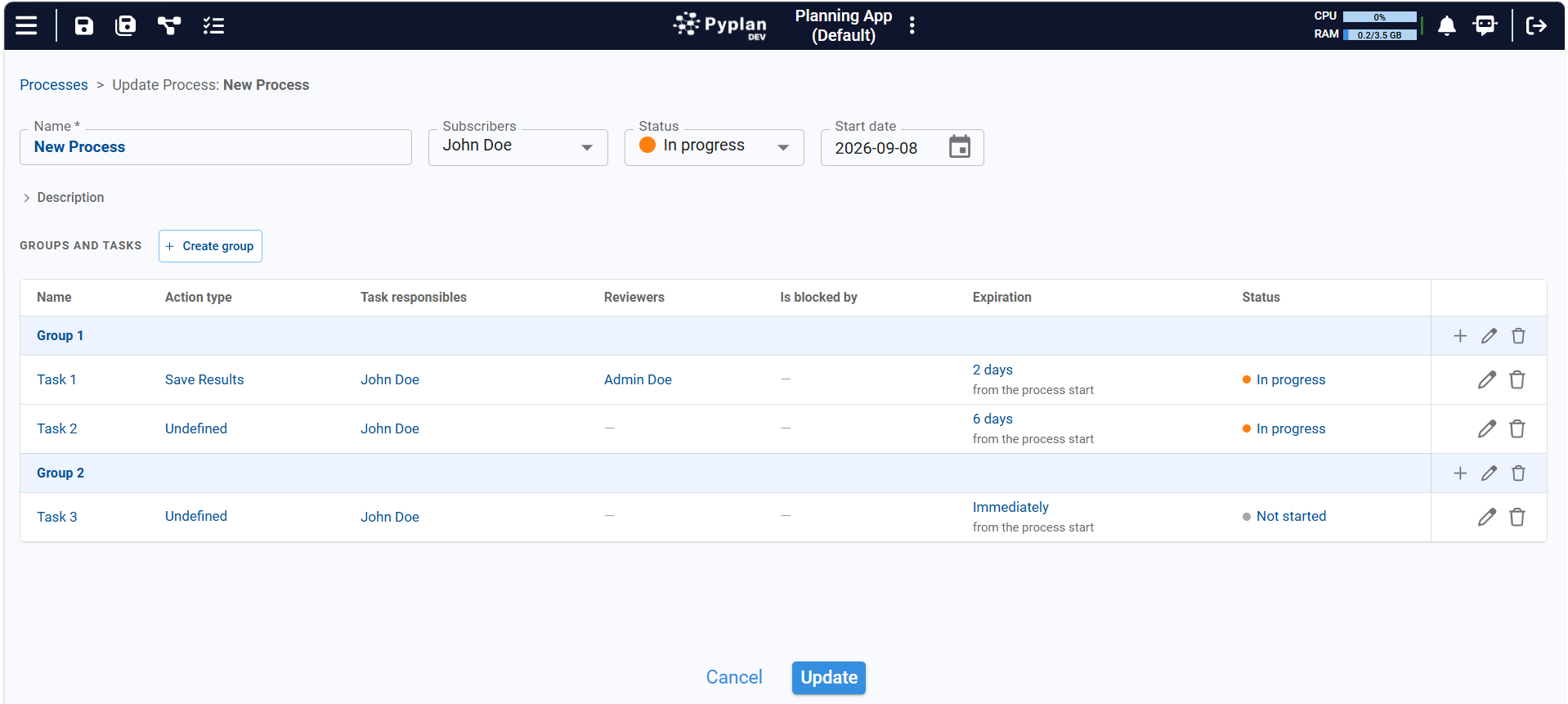
Clicking the Add Process button at the top opens the window for creating a new process. Here, you can define the Name, subscribers, Start Date, and include a description for the process. Beneath these details, an option is available to systematically create and organize tasks into groups, aligning with various components or stages of the process.
Tasks
Processes consist of Task Groups which are sets of related tasks. Task groups enable the grouping of closely related tasks or tasks that need to be completed in a certain sequence. This makes it easier to organize and efficiently assign tasks to responsible users.
Each task in a task group can be assigned to a specific user, which permits clear and defined responsibilities. The user assigned to a task is responsible for completing it adequately and within the stipulated time. Moreover, each task can have a designated Reviewer responsible for controlling and checking the work done on the task to ensure it is resolved correctly.
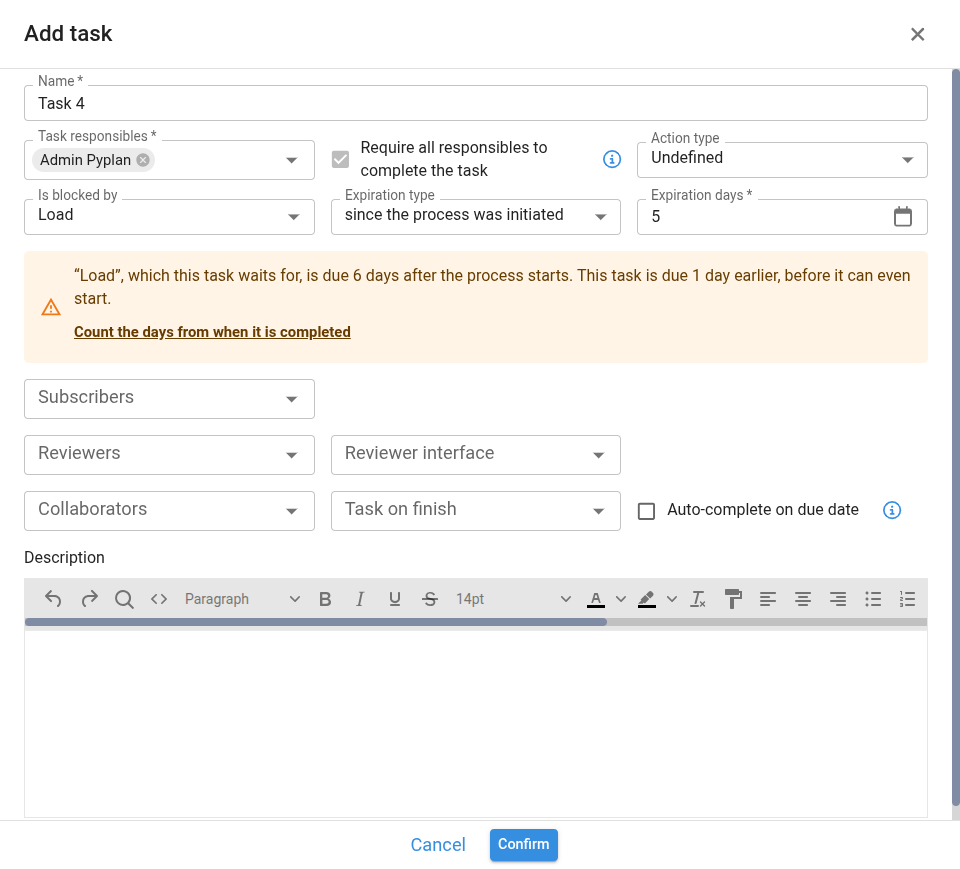
Creating tasks within a process provides a way to divide work into smaller units and assign specific responsibilities to system users. When creating a task, various options can be specified:
- Name: A descriptive name to uniquely identify the task within the process.
- Task responsibles: Selects the users who will be responsible for completing the task. The list contains both people and agents (see Agents in a process below).
- Require all responsibles to complete the task: All responsibles must complete the task before it can be marked as completed. If unchecked, only one responsible is required.
- Action type: Defines the type of action that needs to be performed in this task.
- Blocked by: If this task depends on another previous task to be carried out, it can be specified here. This means the current task can only be undertaken once the mentioned task is complete. Tasks cannot wait for each other in a loop, so the list leaves out the tasks that already wait for this one, directly or through others. A process that contains a loop cannot be saved, and the message names the tasks that form it.
- Expiration days: Specify the number of days available to complete the task.
- Expiration type: Determines from what point the expiration days start to count:
- since the process was initiated: the days count from the start date of the process.
- since blocking task was completed: the days count from when the tasks in Blocked by are completed. It needs at least one blocking task, so it is disabled until one is chosen. A task with no blocking task always counts from the process start.
- Subscribers: Users who will receive notifications about the status of the task.
- Reviewers: Users in charge of checking and approving the task once it is completed. An agent can review just as a person can.
- Reviewer interface: Interface that reviewers can open and use to evaluate task compliance.
- Collaborators: Users who, like the Task Responsible, can complete the task and change its status.
- Task on finish: Scheduled task to execute when the task is completed.
- Auto-complete on due date: Automatically mark task as completed when due date is reached.
- Description: Space for writing a more detailed description of the task, including additional instructions, requirements, or any other relevant information.
Due date warnings
Pyplan warns about due dates that cannot work out. The warnings never stop you from saving: they point at the task so you can fix it.
- A task due no later than a task it waits for. If a task counts since the process was initiated and is due before, or at the same time as, a task in its Blocked by, there is no time left to do it. The task dialog shows a warning that names the blocking task and both due dates, with a Count the days from when it is completed button that switches the expiration type in one click. With several blocking tasks, the warning is about the one due last. Due dates are projected through chains of tasks, including hours and minutes.
- A task with no time after the task it waits for. A task that counts since blocking task was completed with no days, hours or minutes is due the moment its blocking task is, so it is warned about too.
- A task due after the process ends. A process can have a planned end date (it is set by chat; once it has one, the form shows it). A task due after that date is warned about too.
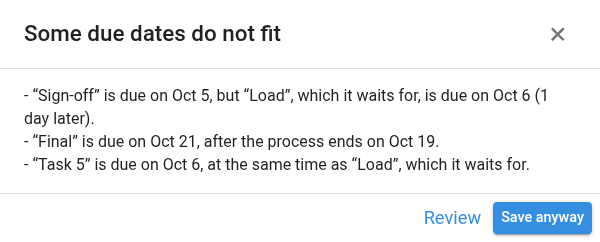
When you save the process, the warnings of every task are listed together under Some due dates do not fit, with the due dates involved. Review takes you back to the form and Save anyway saves the process as it is.
Deleting a task other tasks wait for
Deleting a task, or a group, that other tasks wait for asks for confirmation first and lists the tasks that wait for it, including those in other groups.
A task that loses its last blocking task this way keeps its due date: from then on it counts from the process start, and it can start right away. If that date falls before the process start (for example, because the start was moved later), the task is due at the process start. A task that still has another blocking task keeps waiting for it.
Agents in a Process
A task can be carried out — or reviewed — by an agent instead of a person. In Task responsibles and Reviewers the agents of the application appear beside the people, grouped under Agents: you pick the agent that does the work, exactly as you would pick a colleague. Nothing has to be declared inside the application itself.
Pick an agent and one more field appears: Run as. That is the agent user whose permissions the run gets — its roles, its departments, what it can see. An agent user is created from the User manager with the This user is an agent checkbox: it consumes a license seat and it cannot sign in (it has no password). One agent user normally serves every agent in the company, so the field fills itself in and you only touch it when there is more than one identity to choose from.
Several agents can share one identity, and can be on the same task. Two agents reviewing the same step — say a risk one and a finance one — is one task with two reviewers, both running as the same agent user.
Two more fields appear with an agent on the task: Application and Version, which say what the agent opens. They default to the application the process belongs to, and to Default version — meaning whichever version is the default when the run happens, not the one that is the default today. Pick a version by name only when the task has to stay on that exact version.
What the agent does
When the task becomes workable, the agent opens the application with its own permissions, reads the task (its description, deadline, previous comments and the tasks it was waiting for), does the work, and reports back. Its report becomes a comment on the task, so the thread reads the same whether a person or an agent worked on it.
One run leaves one comment. Whatever the agent reports — its summary and any note it decided to add along the way — is written as a single entry, so a task never shows the same run twice. There is no need to ask a task for a comment: what the agent reports is already the comment. Ask for the analysis, and the analysis is what gets written.
While a run is in flight, the agent badge next to the responsible's name turns into a spinner, in the process manager and in My tasks alike.
An agent can also fail to resolve a task. When that happens it says so in a comment and the task is left for a person: the usual delay and expiration rules take over from there, exactly as with somebody who did not answer.
Who closes the task
The same rule that applies to people: if the task has reviewers, whoever executes it can only move it to Pending review — the reviewers approve or send it back. If it has no reviewers, the executor can close it. Delegating a task entirely to an agent is simply a task with no reviewers; adding a reviewer is how you keep a person in the loop.
What has to be a second opinion is the agent, not the identity it runs as: the same agent user can be behind both sides as long as the reviewing agent is not the one that did the work. Two things are refused: the same agent twice in one role, and the same agent on both sides of the review.
Sending a task back for changes
A reviewer who is not satisfied moves the task from Pending review to In progress. Pyplan then asks what has to be corrected, posts it as a comment and reopens the task. If the responsible is an agent, that comment is the instruction for its next run: it starts again on its own and reads the note first.
A comment on its own does not reopen anything — it is the status change that does, which is what separates "this is fine" from "try something else".
Managing a process by chat
A process can also be built and changed by asking the assistant — or any MCP client — instead of using this screen: "set up the monthly close and let the S&OP agent review the consolidation" creates the same process this section would. It runs with your own permissions: authoring needs the same right the Processes section requires, and anybody involved in a task can read it, comment on it and move their own task exactly as they can here. Restarting or deleting a process is asked for explicitly before it happens.
The same rules apply as in this screen: a loop of tasks waiting for each other is refused, and nothing is saved. When the assistant saves tasks it also tells you two kinds of things:
- What Pyplan adjusted on its own, such as a task that lost its last blocking task and now counts from the process start, or a task that no longer waits for anything and can start.
- Due dates that cannot work out: the due date warnings above, each with the change that would fix it. The assistant applies the fix only if you ask.
Running an agent on demand
Any task with an agent shows a Run agent action in My tasks. It queues a run immediately instead of waiting for the process to reach the task, which is also how you retry after a failure. While a run is in flight the action shows a spinner and a second run is refused.
An administrator can switch agents in processes off for the whole company from AI settings → Availability. With it off, agents cannot be assigned to tasks and the ones already assigned do not run. The chat is unaffected.
When an agent responsible and an agent reviewer disagree, the task bounces between them. Pyplan stops that after three rounds, leaves a comment saying so, and hands the task to a person. The limit only applies when both sides are agents: a person can send work back as many times as it takes.
Workflow Interaction
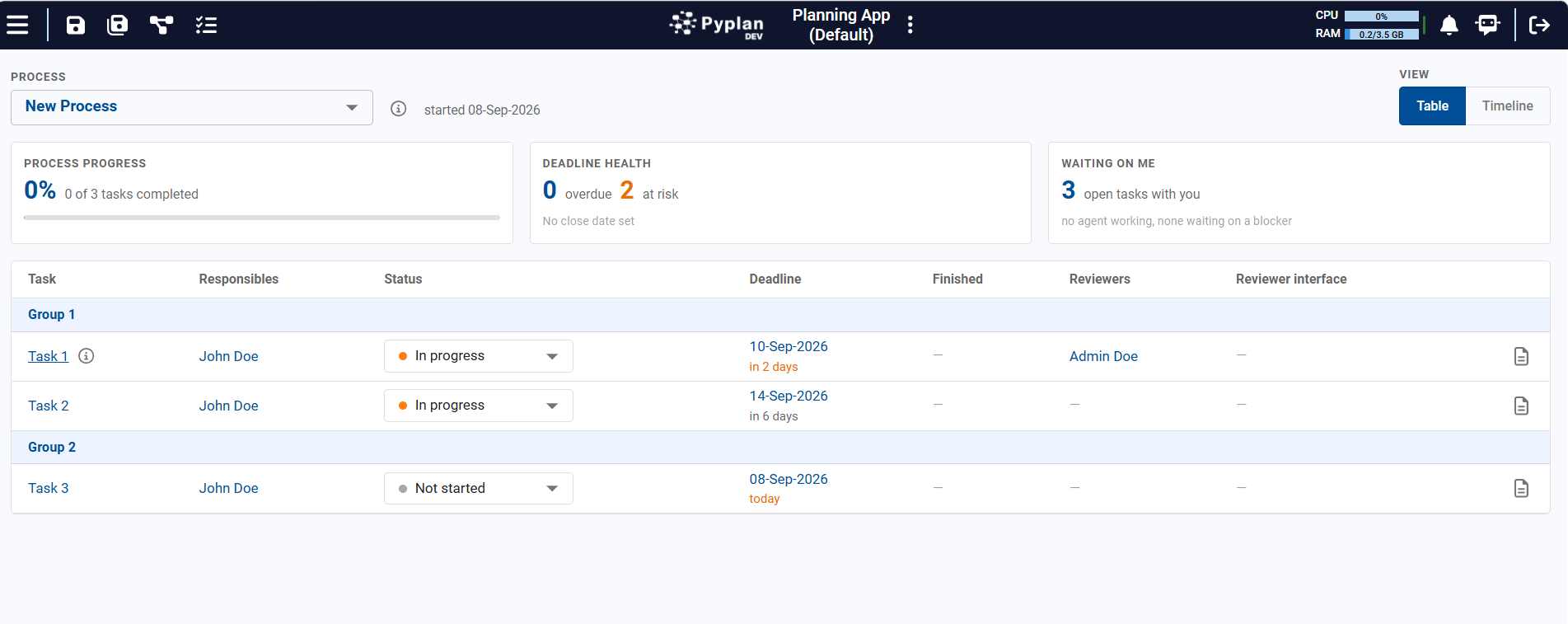
After creating processes, the respective responsible parties for each task can access an interface to view and manage their assigned tasks. Each task is associated with a status, which could be one of the following: Not Ready to Start, Not Started, In Progress, Pending Review, Expired, or Completed.
The task's status reflects its position in the process, and if there are designated reviewers, they can assess whether the task is completed correctly. Additionally, a comments section is available for each task, facilitating communication and providing a space for necessary annotations. Tasks assigned to an agent are marked with an agent icon, and the agent's own notes appear in that same comments section.
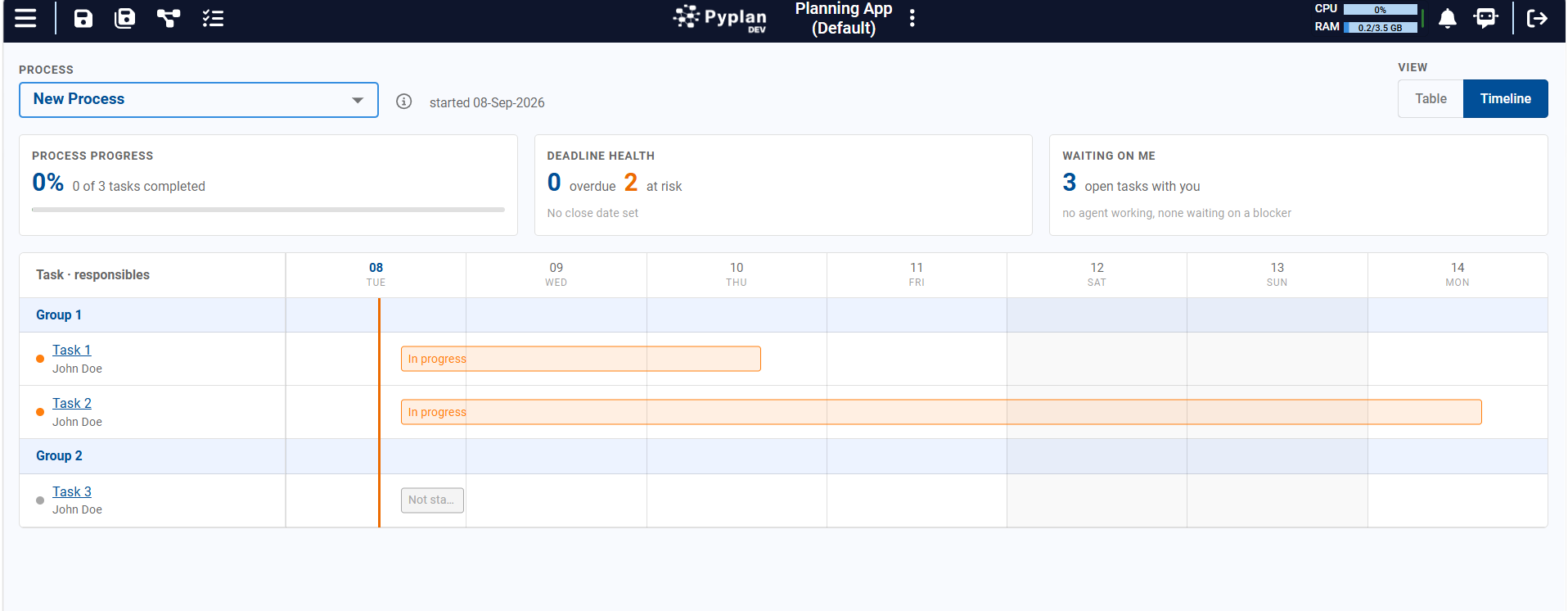
The process can be reviewed from two complementary views. The Table view organizes tasks in a single overview, making it easy to compare status, due dates, responsible users, reviewers, and comments at a glance. The Timeline view complements it by showing the workflow in chronological order, helping users understand dependencies and how tasks progress from start to finish. Together, these views provide a clear operational summary and a structured view of the process over time.
Email Notifications
Besides the in-app notifications, Pyplan sends emails as a process advances. Who receives each one depends on the role the user has on the task or the process:
| Sent when | Recipients | |
|---|---|---|
| Process started | The process reaches its start date, or somebody starts it manually. | Process subscribers. |
| Task ready to start | The process starts, or the last blocking task is completed or expires — in both cases only for tasks that nothing is holding up any more. | Task responsibles. |
| Task waiting for a blocking task | The same moments as above, but for a task that still cannot start because another task has not finished. | Task responsibles. |
| The status of a task has changed | A task moves to In progress, Pending review, back to In progress from review, Completed or Expired. | Task subscribers, plus responsibles and/or reviewers depending on the transition. |
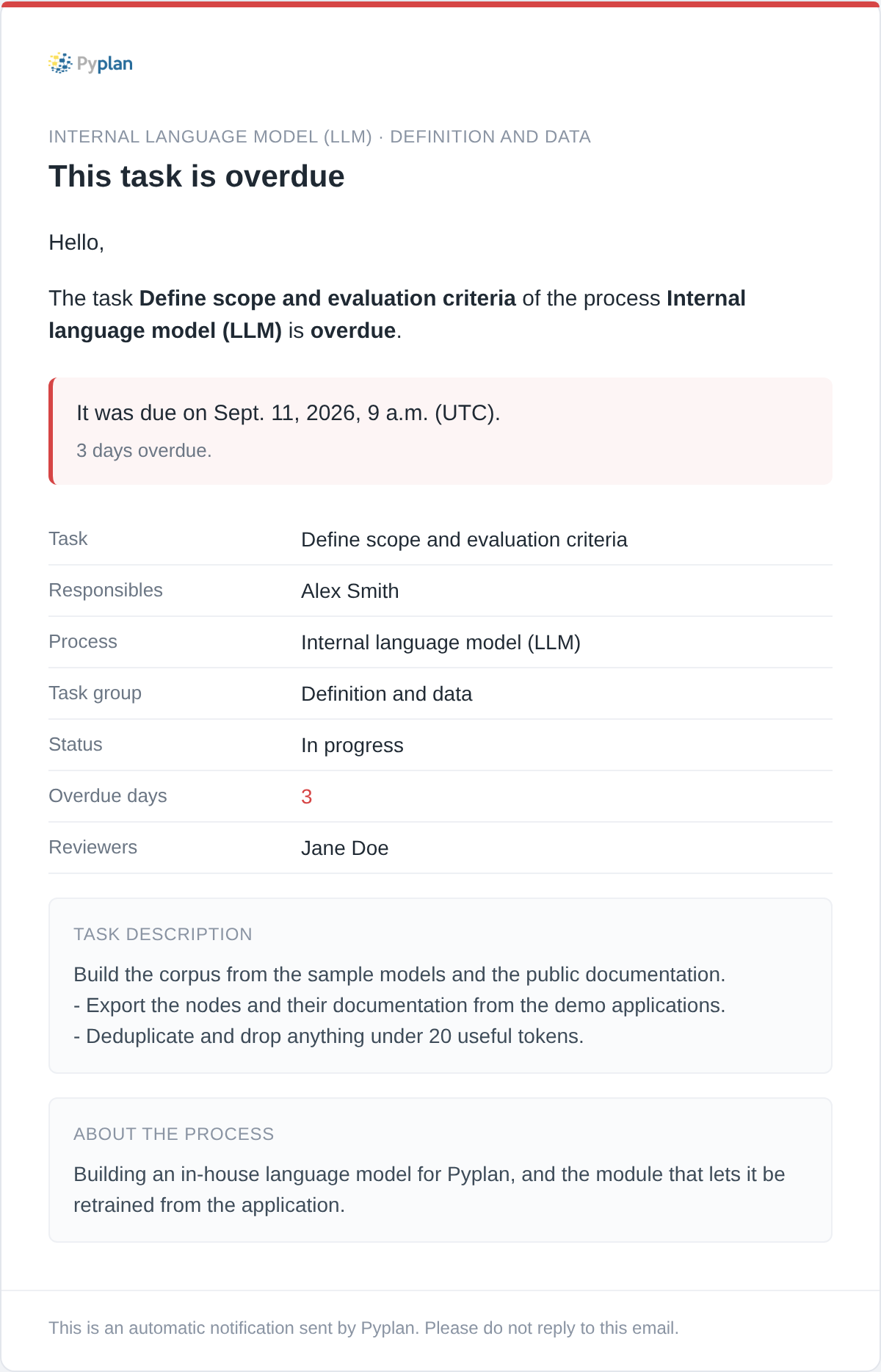
| Delayed task notification | The task passes its due date. Sent on days 1, 2, 3, 4, 10, 20 and 30 of delay, not every day. | Responsibles, reviewers, task subscribers and process subscribers — and, separately, the responsibles of the tasks that this one is blocking. |
| Process up to date | The last overdue task of a delayed process is cleared. | Process subscribers. |
| New comment in a task | Somebody comments on a task. | Responsibles, subscribers and reviewers, except the author of the comment. |
What the emails tell you
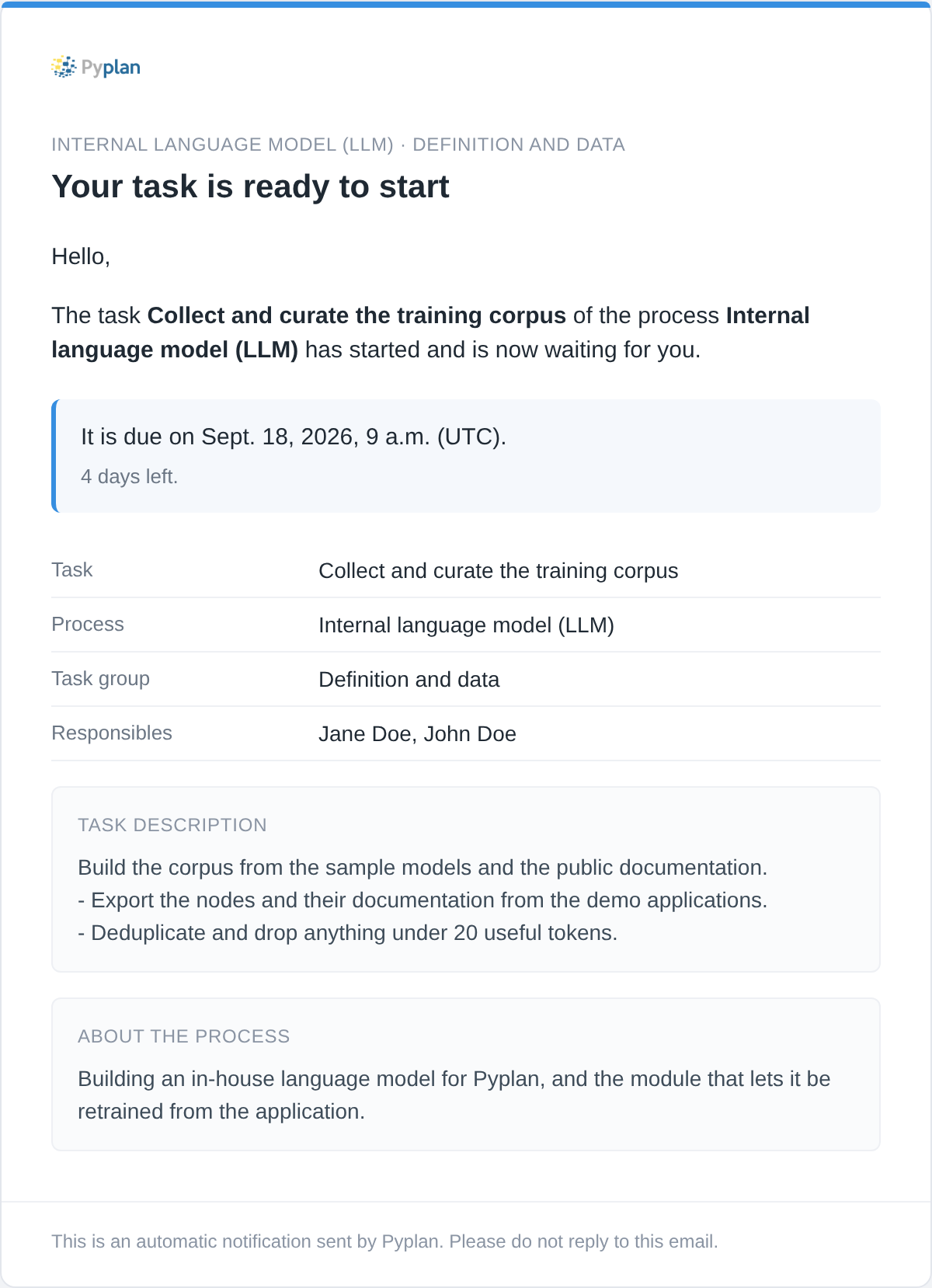
Every task email identifies the process and the task group it belongs to, its responsibles, the description of the task and the description of the process — so the message is readable on its own, without opening the app to remember what the work is about. Both descriptions are optional; an empty one is simply left out.
-
Due dates, not just counters. Emails state the exact date and time a task is due — "It is due on September 9, 2026, 2:30 p.m. (UTC) — 5 days left" — and "It was due on September 1, 2026, 2:30 p.m. (UTC) — 3 days overdue" when it is late. Dates are always in UTC and the emails say so.
-
Under a day left, emails count hours instead of naming a date. A message that says "you have until September 4" is misleading when it arrives on September 4. So when less than 24 hours remain the email leads with "It is due in 7 hours" (or "in less than an hour"), and gives the exact moment underneath. The same applies just after the deadline: "It was due 3 hours ago".
-
Due dates are projected for tasks that have not started. For a task whose expiration is counted since the blocking task was completed, the date is estimated from the deadlines of the tasks it is waiting on, so a due date is available even before the task can start.
-
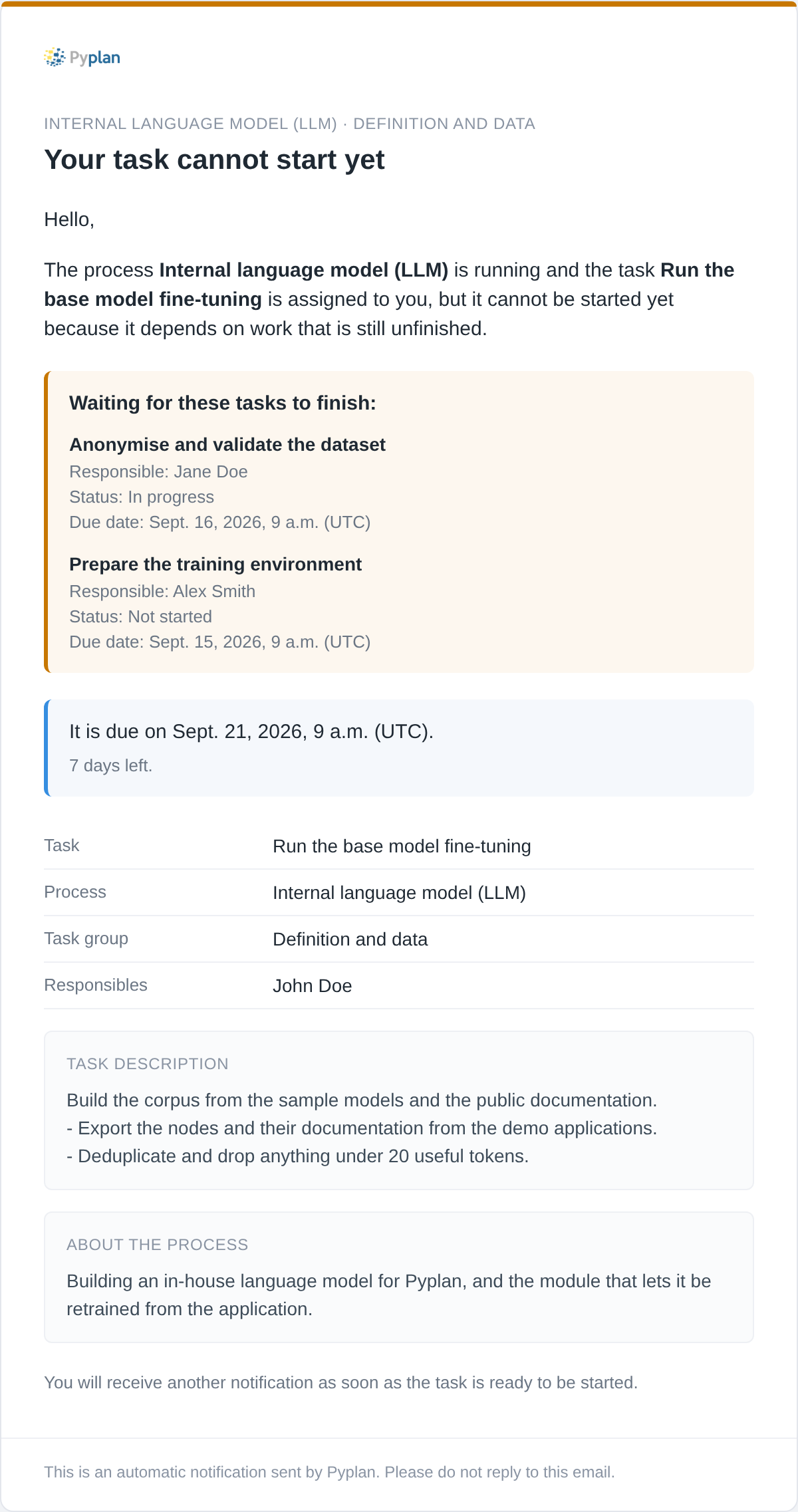
A task that cannot start says so, and says why. When a task is assigned to you but is waiting on another task, you get an email listing each blocking task with its status, its due date, and who is responsible for it — instead of silence until the blocker finishes, or a "ready to start" message for a task you cannot touch. The same block appears in the overdue email of a task that is late because it is blocked.
-
If a task you depend on is late, you get an email that names the blocking task, its responsibles, and the due date of your own task, so it is clear whose delay it is.
- Completed and expired tasks drop the deadline. The status-change email for a task that reached a final status does not show a countdown, since there is nothing left to do by that date.
Configuration
Workflow emails follow the company's Email Settings preferences, described in Security Options:
email_languagesets the language of every email (en,esorpt), including the format of the dates.- The Email logo uploaded for the company in the Company Manager replaces the Pyplan logo in every email. It is set separately from the company logo shown in the application — see When the logo does not appear if it does not show up.
email_service_activeturns email sending off entirely for the company.
These settings are taken from the company that owns the process, which is the company you were working in when you created it — not from the company of each recipient. A process created in company A sends its emails with A's language and A's logo to everybody on it.
The check that detects delayed tasks and queues the overdue notifications runs once a day, at the hour set by the workflow_check_time company preference (an hour of the day in UTC, 4 by default):
{
  "hour": 4
}
Emails are not sent the instant they are generated: they are placed in a queue that a background job drains every few minutes, so expect a short delay between the event and the message arriving.