Secrets Manager
The Secrets Manager is a tool that securely manages keys and passwords on a per-department and per-user basis, ensuring that only authorized users have access to these sensitive credentials.
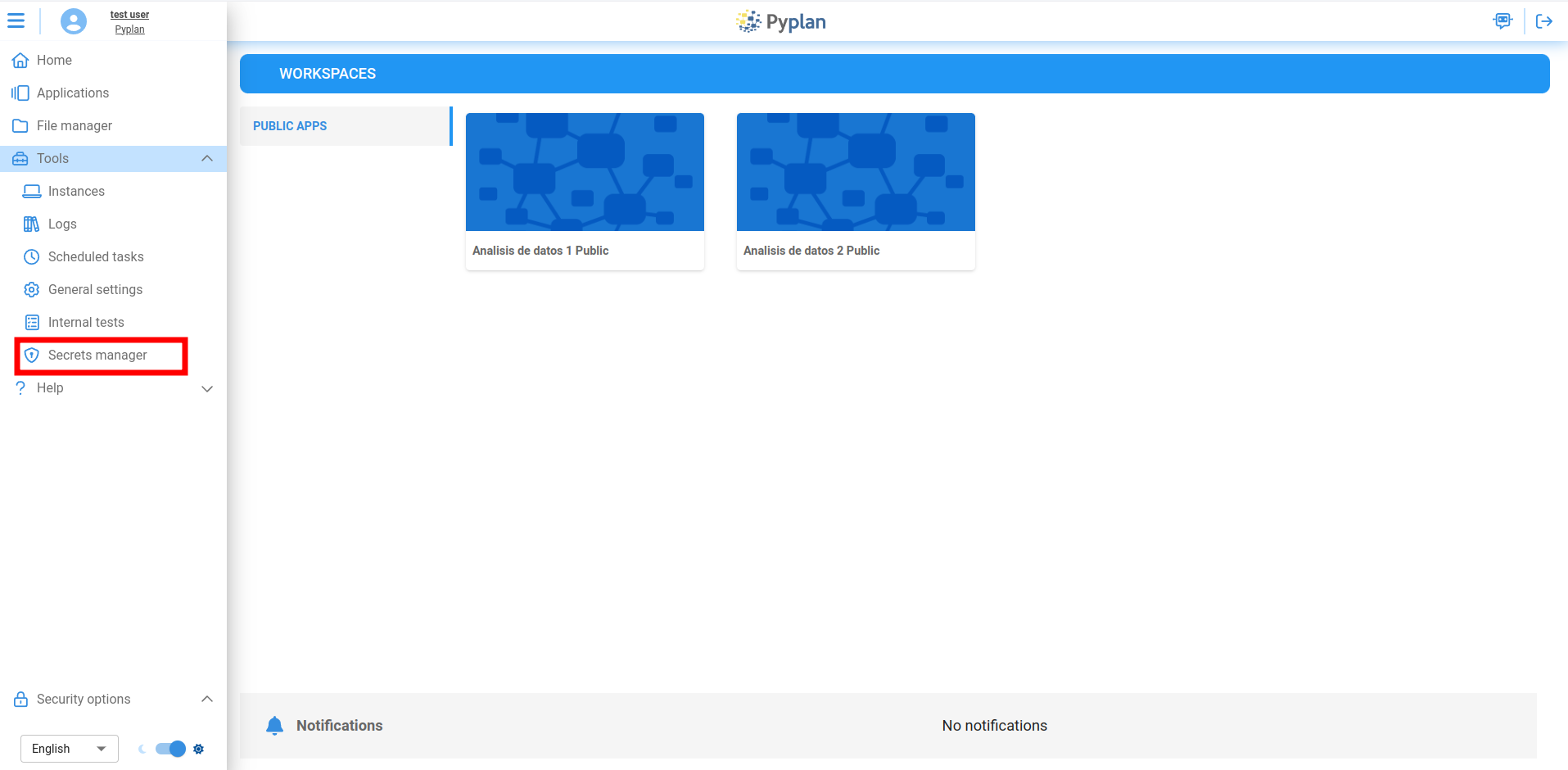
It can be accessed from the main menu of the application, within the Tools submenu.
Managing Secrets
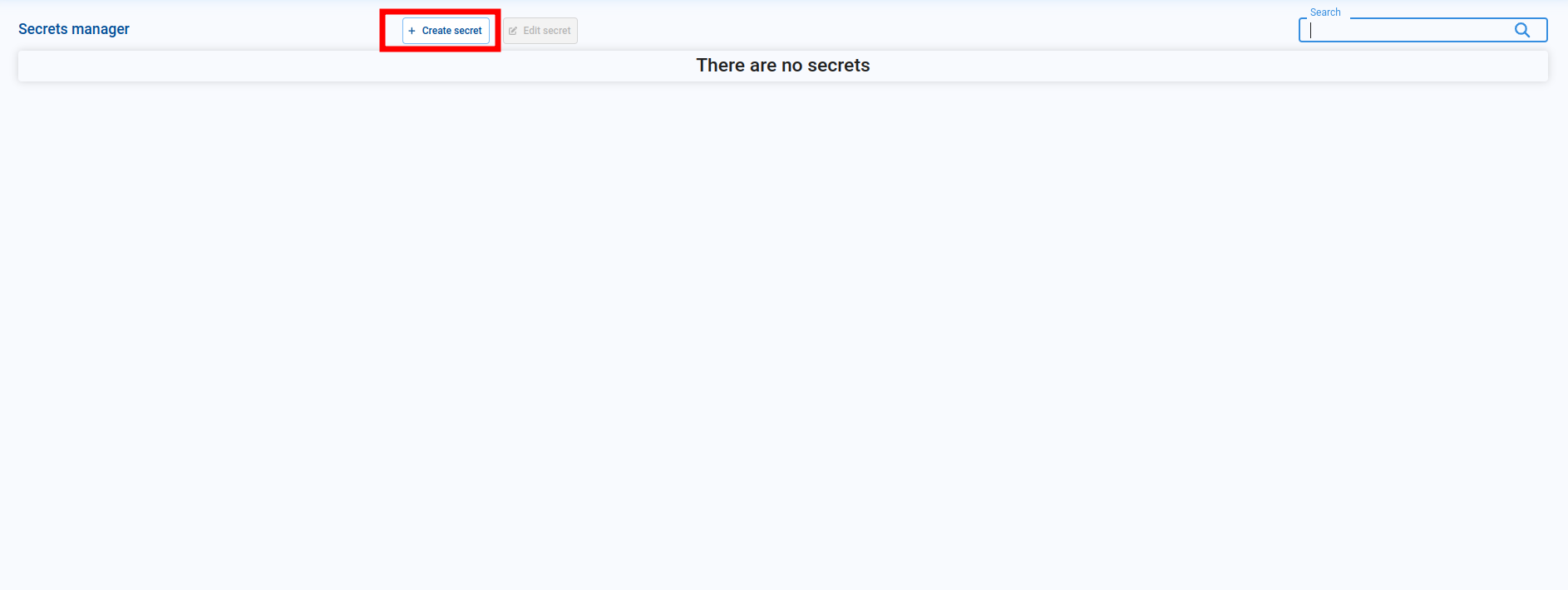
When you enter the Secrets Manager, a table is displayed with a list of all the secrets the current user can access. To create a new secret, click on the Create Secret button.
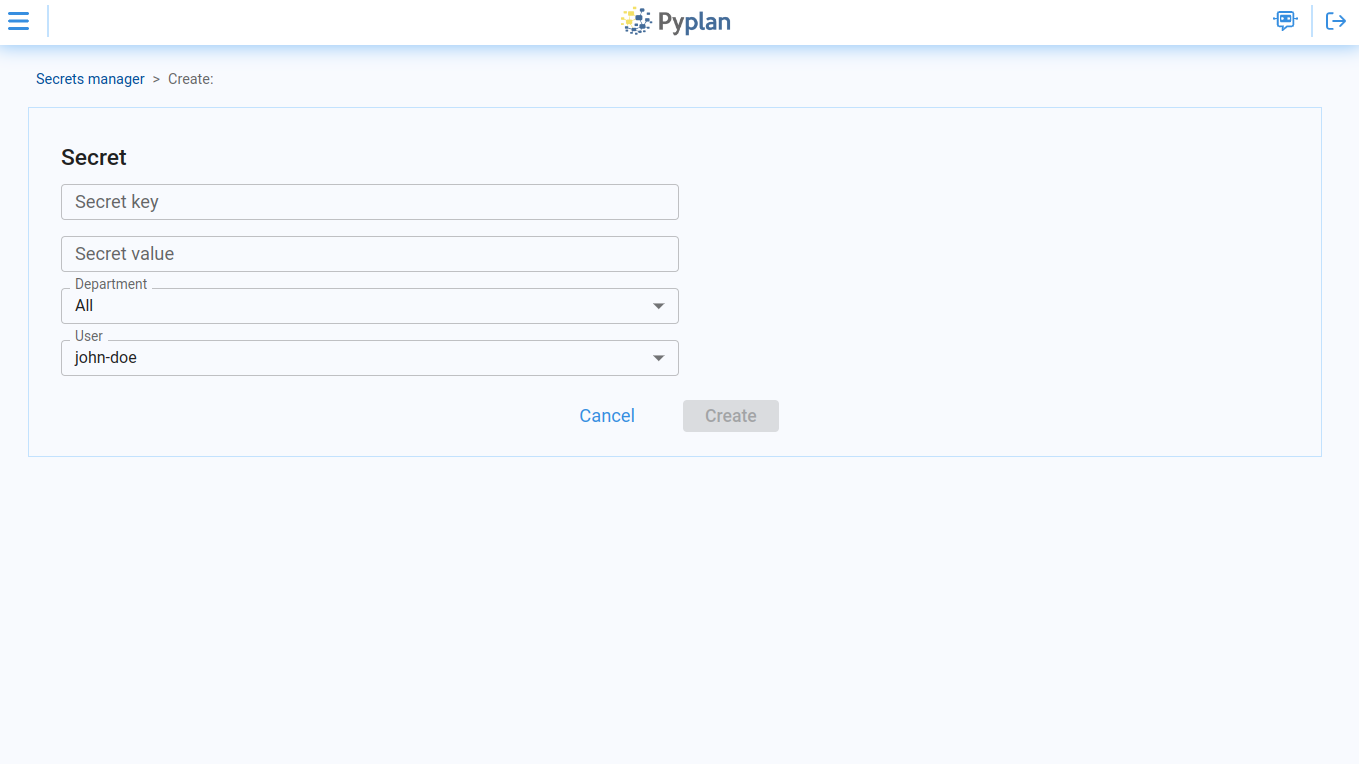
This opens the secret creation page with the following fields:
| Field | Description |
|---|---|
| Secret Key | The identifier key for the secret. The secret's value will be retrieved using this key. |
| Secret Value | The actual value of the secret. |
| Department | Select one or more departments within the company that should have access to the key. Select All to make it visible to all departments. |
| User | Choose whether the secret should be accessible to all users in the company (select All) or restricted only to the user creating the secret. |
Only users who meet the specified Department and/or User criteria will be able to access the secret value. This ensures that sensitive information is securely restricted to authorized users within Pyplan.
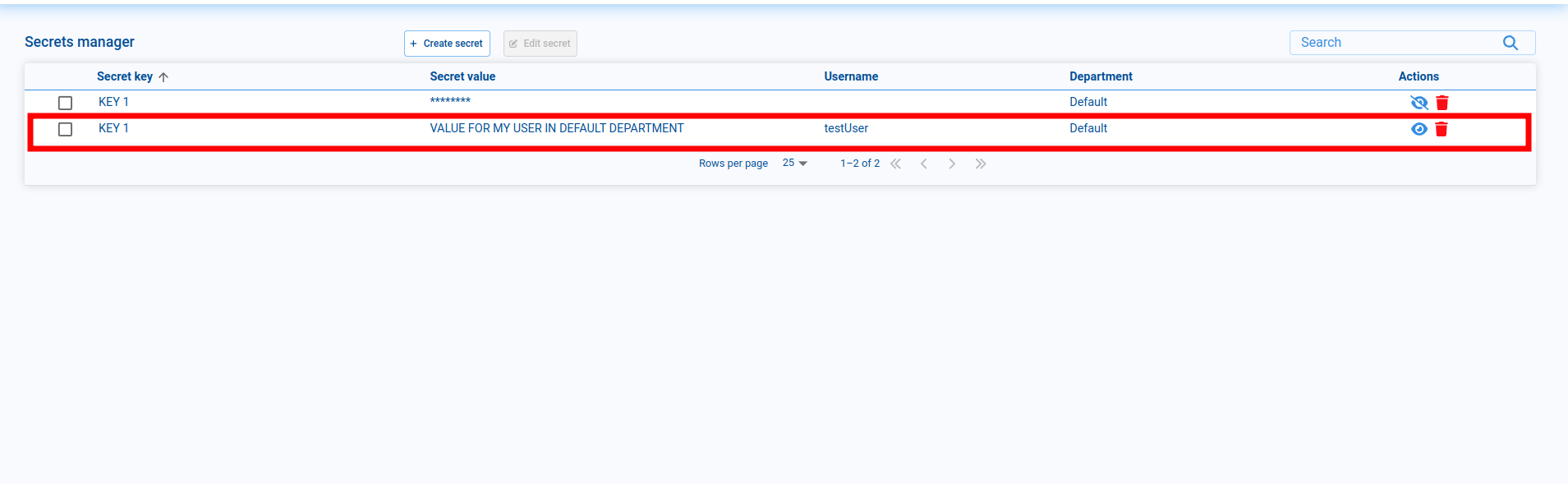
The same secret key can be used with different department or user configurations. For example, if you create a key called KEY 1 for all users in the Default department, you can also create a different KEY 1 value specifically for your user within the Default department — the system will correctly retrieve the value associated with the most specific match.
Viewing Secret Values
Key values are not displayed in the table by default. To reveal a value, click the show icon on the corresponding row.
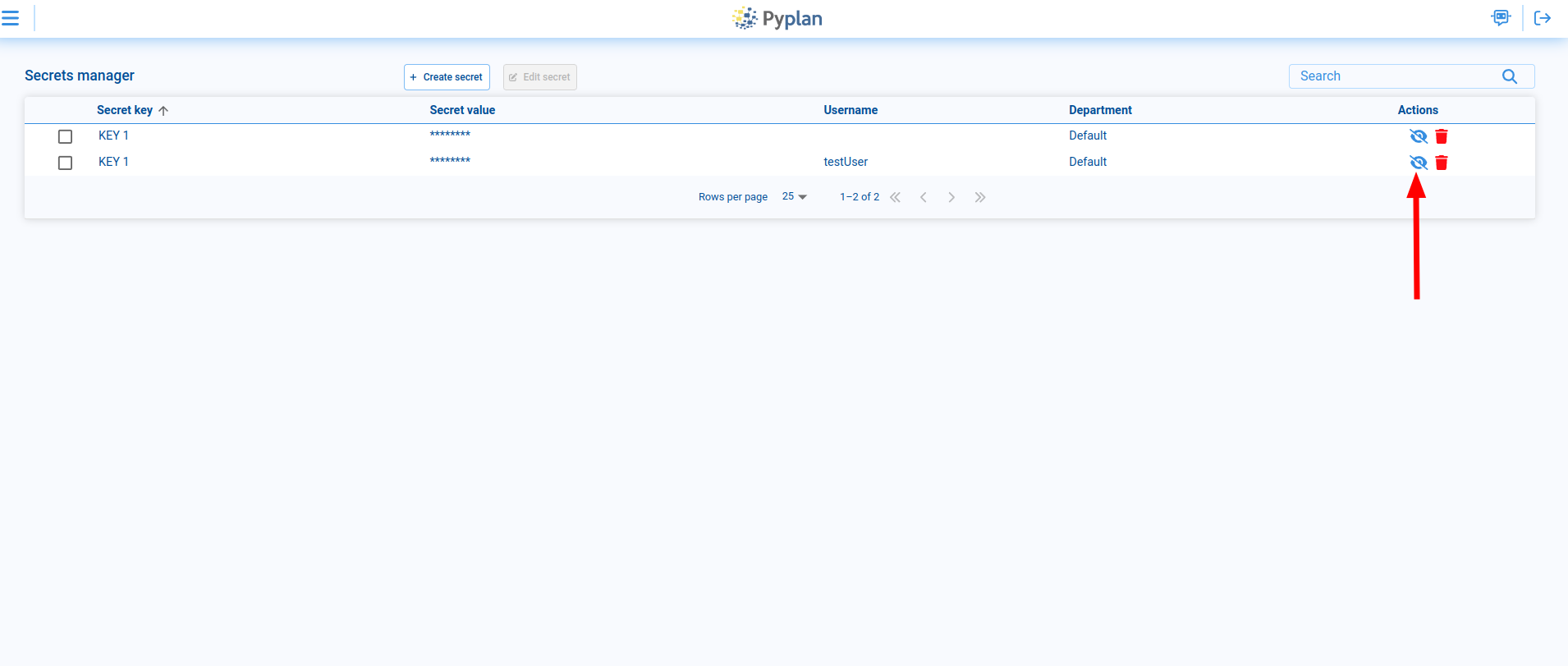
The text of the selected row's value will appear. Click the icon again to hide it.
Retrieving a Secret in Pyplan
To retrieve secrets within the application, use the pp.get_secret function:
pp.get_secret(secret_key, department_code=None)
Parameters:
| Parameter | Description |
|---|---|
secret_key | A string representing the key of the secret. |
department_code | An optional string parameter to force retrieval of the secret key associated with a specific department. |
Returns: The secret as a string if a match is found, or None if no matching key is found.
Example Usage
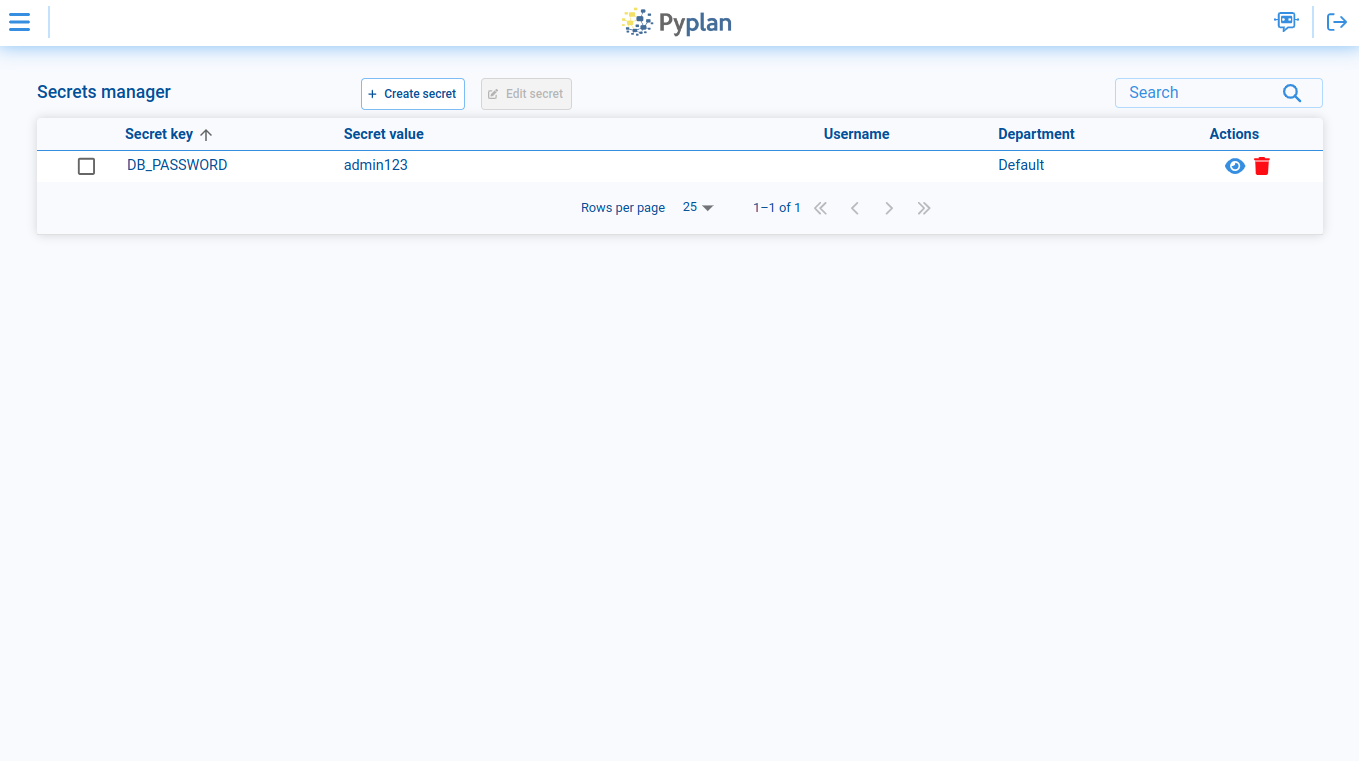
After creating the DB_PASSWORD secret:
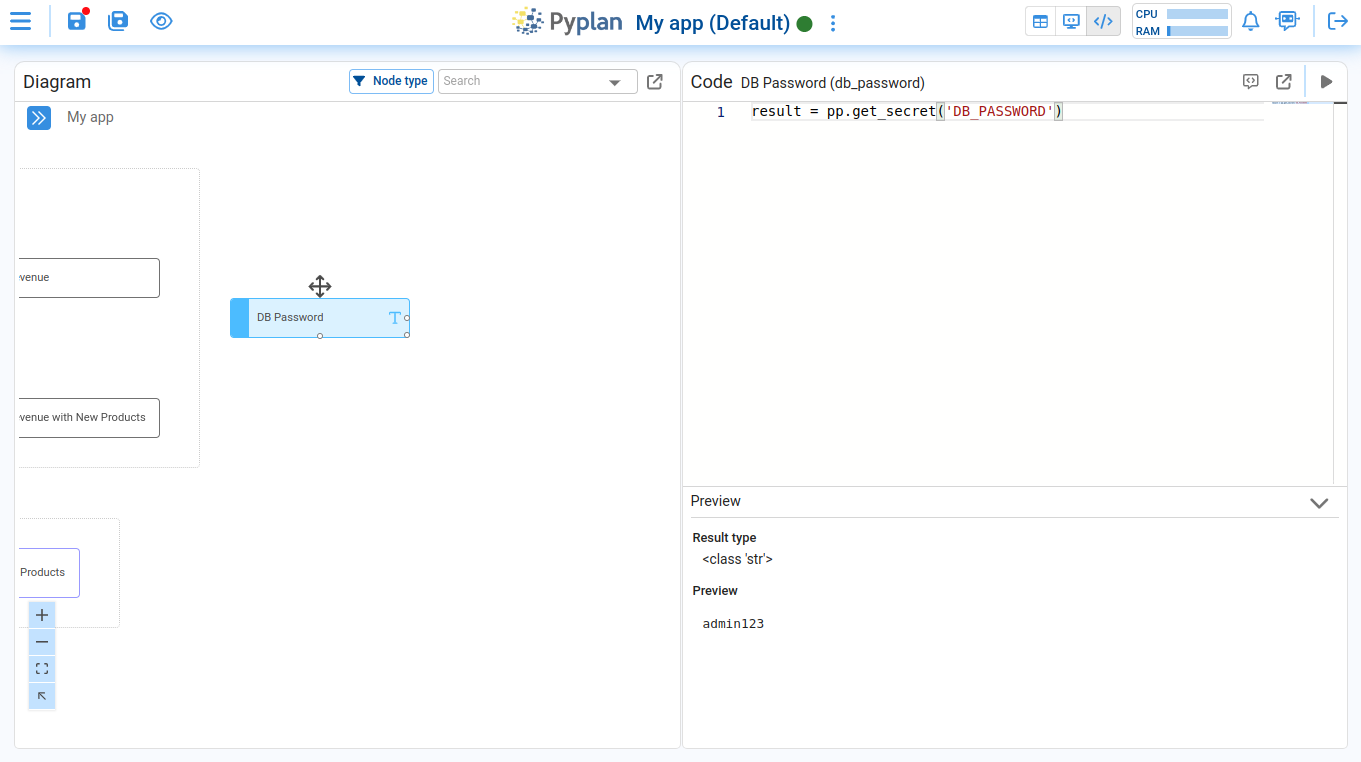
Access it in a Pyplan node:
result = pp.get_secret('DB_PASSWORD')
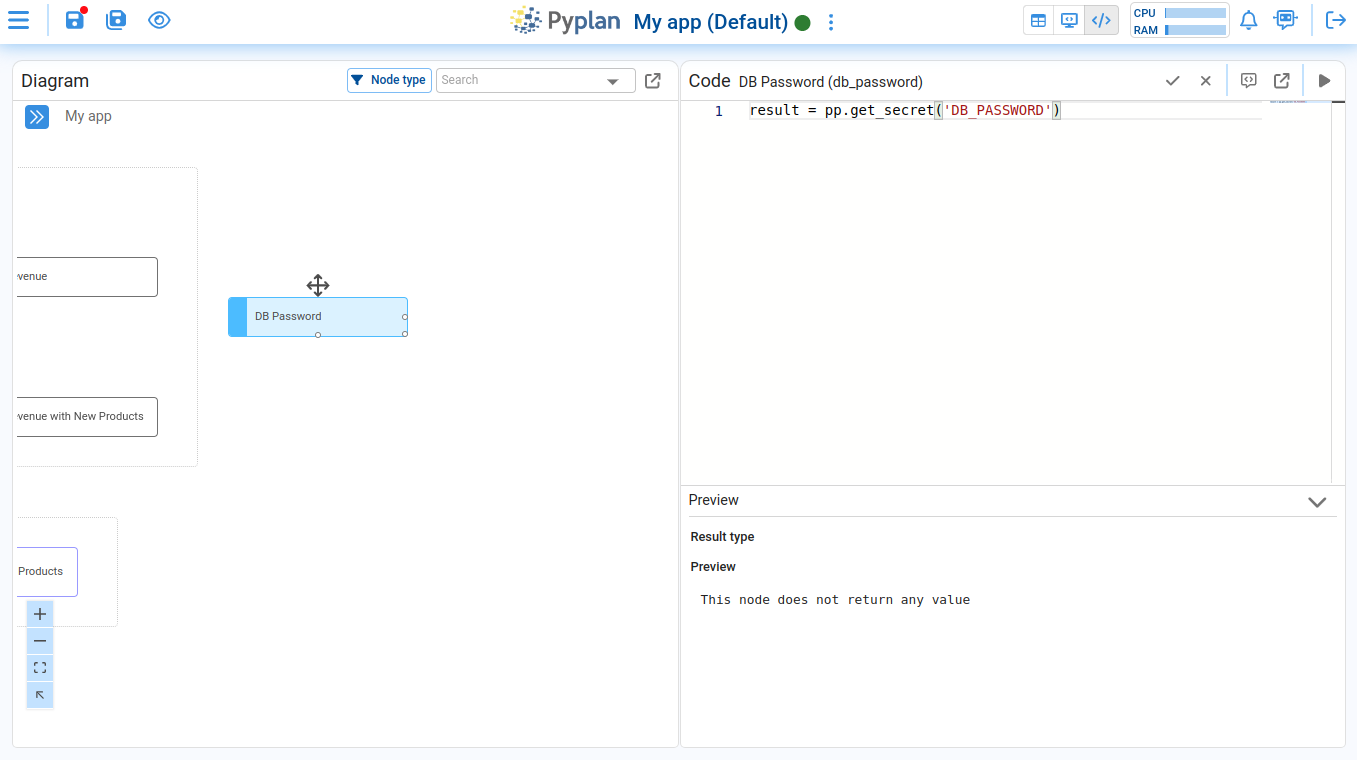
If another user from a different department (other than the one configured for the key) opens the same app, the function will return None:
You can also link a secret to a form database password by editing the settings of the form:
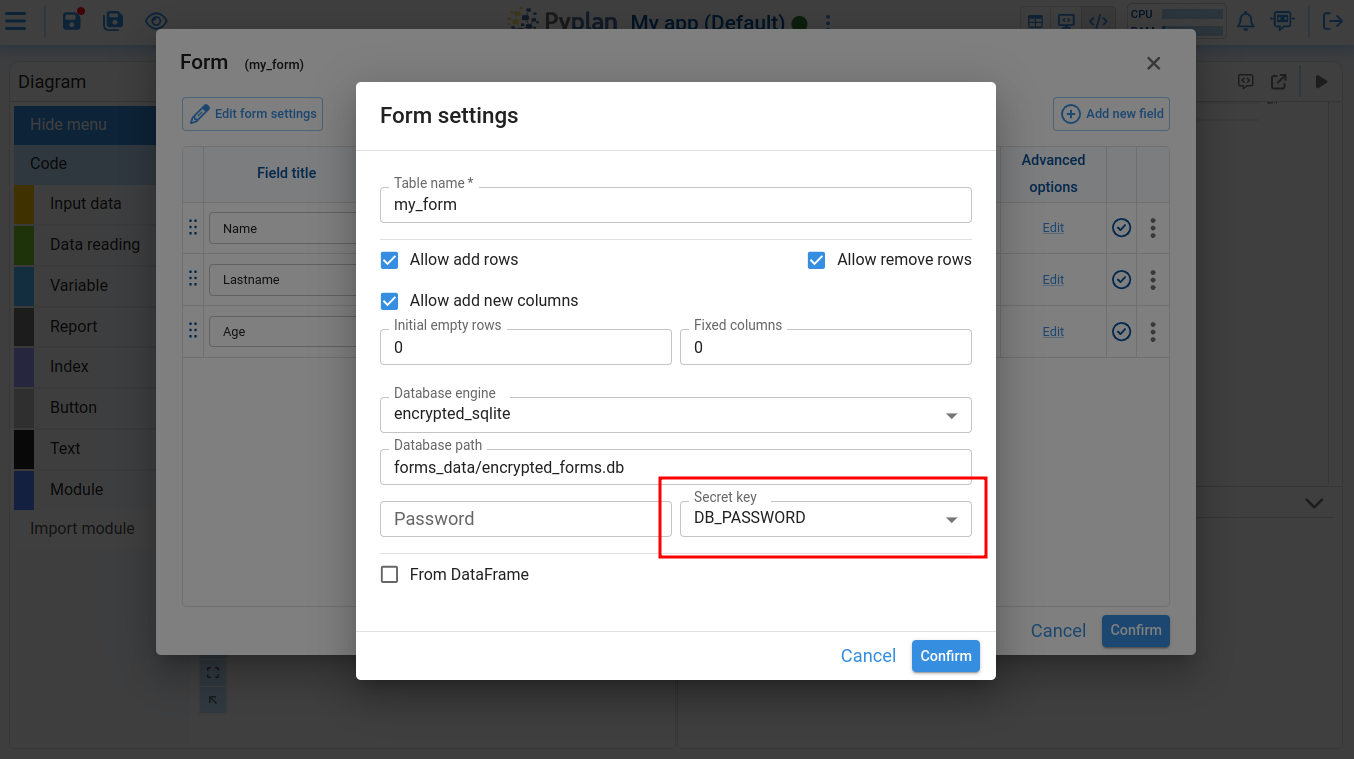
This ensures that only authorized users have permission to read or write to the form.